2 minutes
Setting Up Your Lab
Outline
We would like to prepare our computers to run a Linux security (network penetration testing) distribution inside a virtual machine. You need to carry out the following tasks.
If you need help with the above tasks, keep reading this appendix.
FAQ
VM versus USB Flash Drive
It is possible write your Linux ISO file to a USB flash memory drive, and use this USB drive to boot your laptop. This has a few advantages:
- Improved performance for the Linux system as the OS is not virtualized.
- Ability to access hardware devices directly, in particular wireless network cards for WiFi related security tasks.
But this carries various disadvantages:
- Your main computer OS, be it MS Windows or Linux, won’t be conveniently accessible after you boot from the USB memory.
- Therefore, for convenience, this would require you to set an extra computer for such purposes. This make it bulky to carry around.
- Although supported, it is not very efficient/easy to update your system and install new packages on a system booting from a USB memory.
Linux Security Distributions
There are many great Linux security distributions. One can try different ones and stick to what he/she likes most.
Kali Linux
Like Parrot OS, Kali Linux is based on Debian Linux. It is one of the most popular network penetration testing distributions.
Pentoo
Pentoo is based on Gentoo Linux.
BlackArch
BlackArch is based on Arch Linux.
Parrot OS
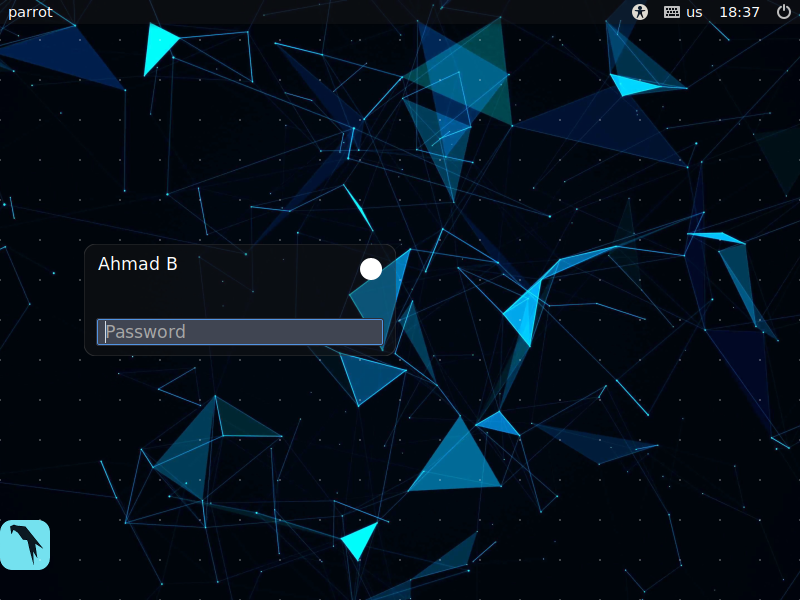
My personal preference is Parrot OS. This is because Parrot OS requires relatively low resources and is relatively very fast to get it setup.
Virtualization Software
There are different virtualization software that one can choose from.
VirtualBox
VirtualBox is FOSS under GPLv2 for the most part, except for the Oracle VM VirtualBox Extension Pack. It is very popular choice.
VMware Workstation Player
VMware Workstation Player is free for non-commercial use and closed-source virtualization from VMware.
VMware Workstation Pro
VMware Workstation Pro provides various features not found in Player. It is priced at $199 at the time of writing. It is my preferred choice.
Demo
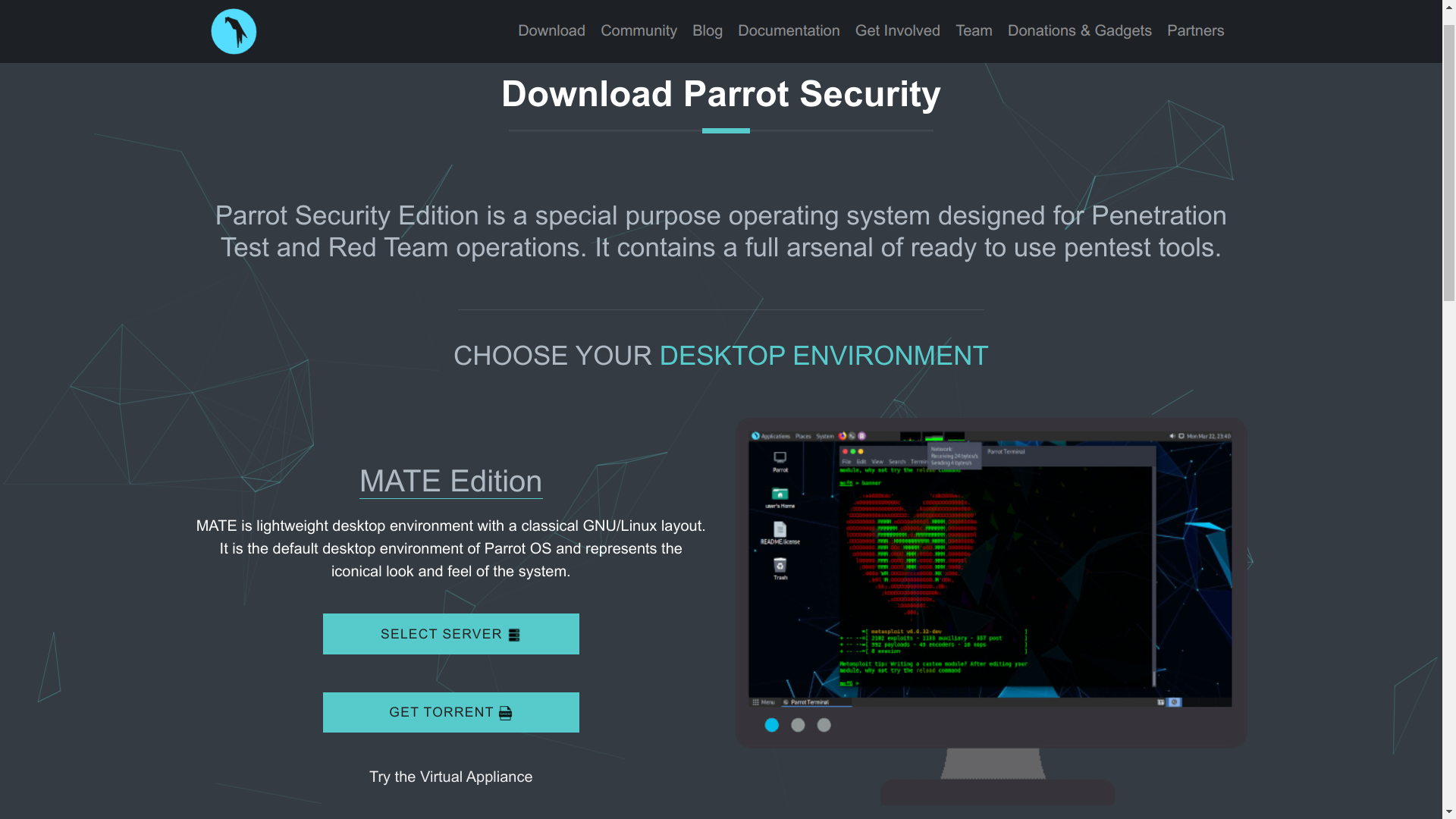
Download Parrot Security Mate
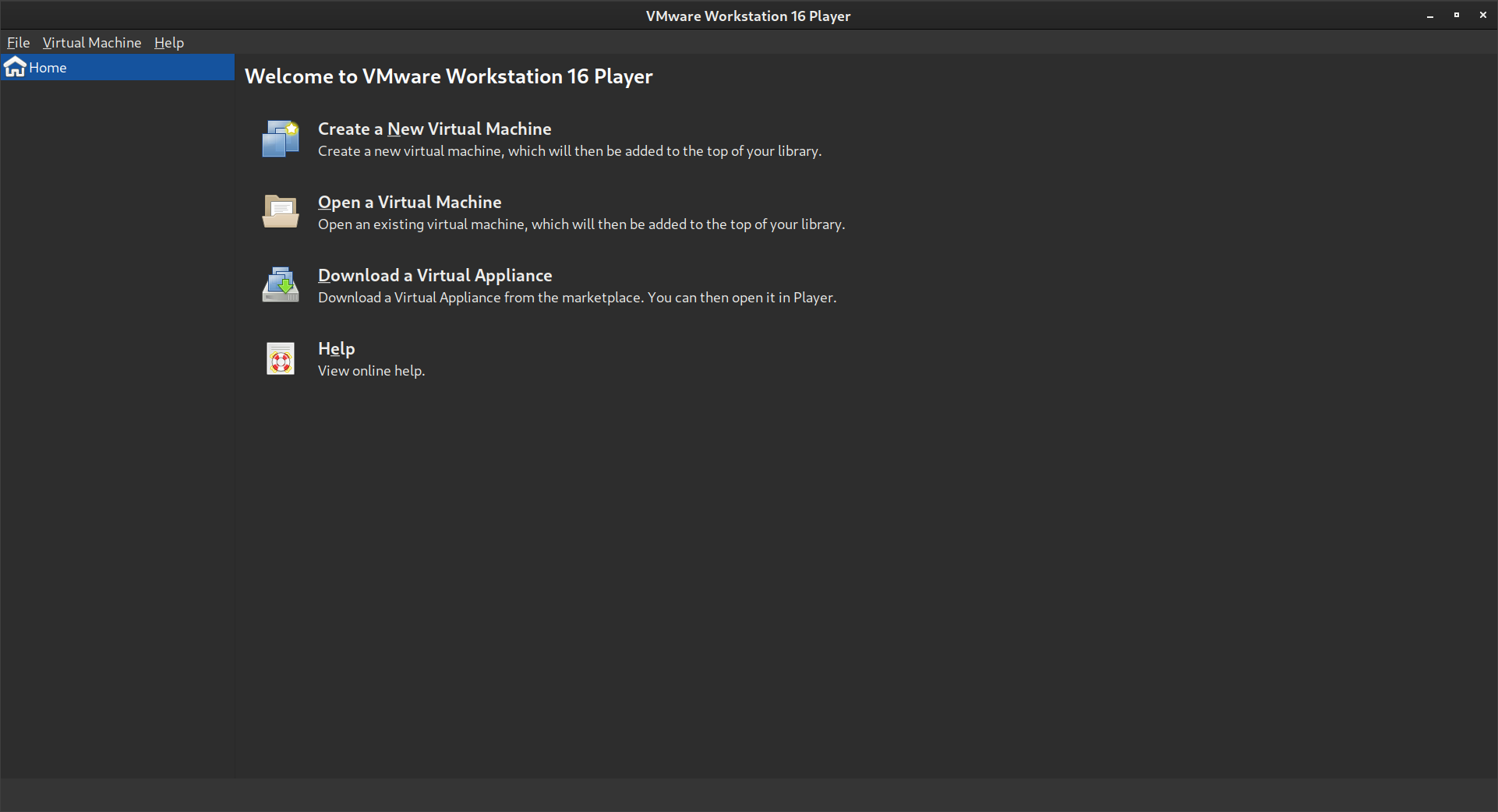
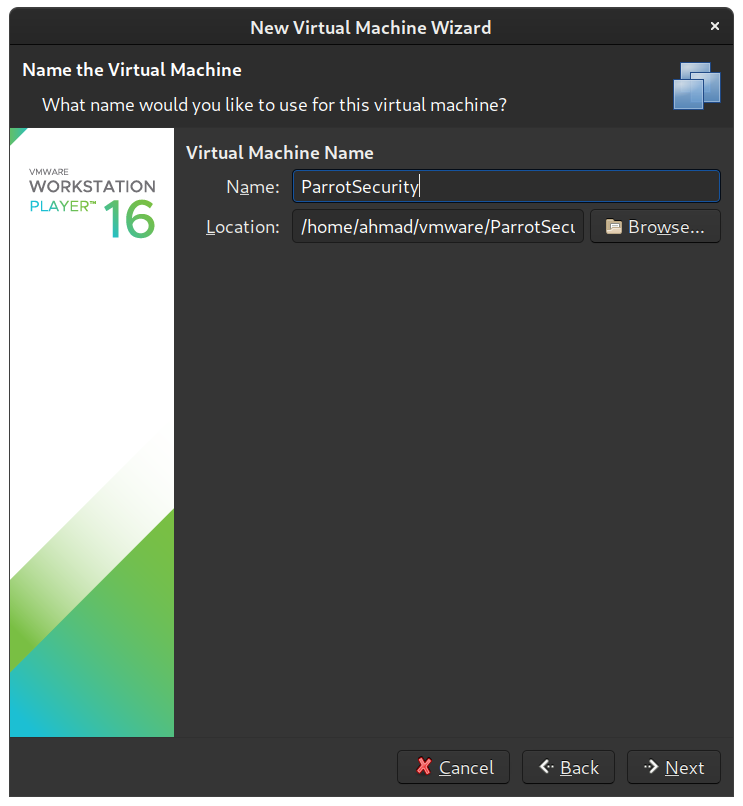
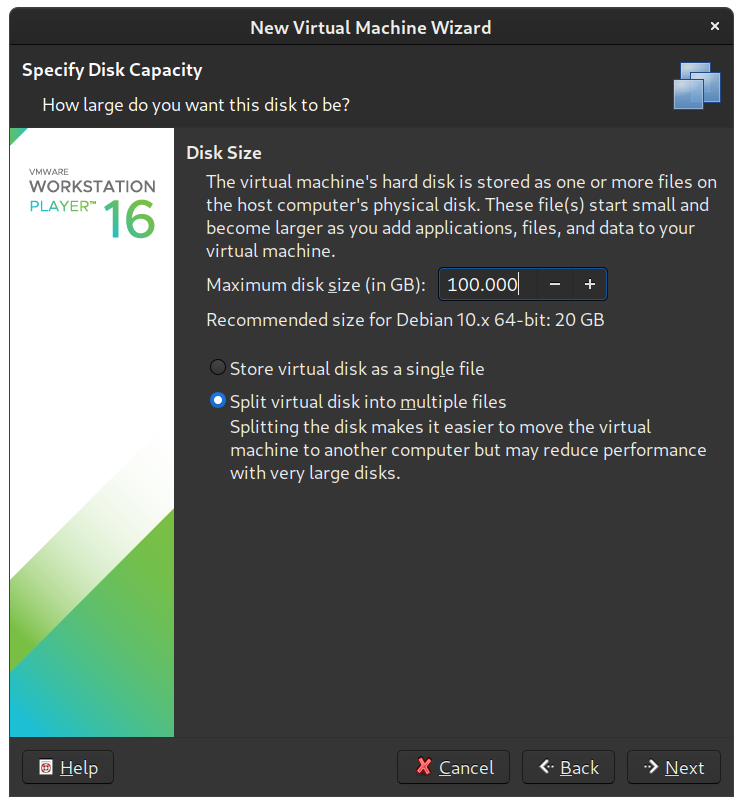
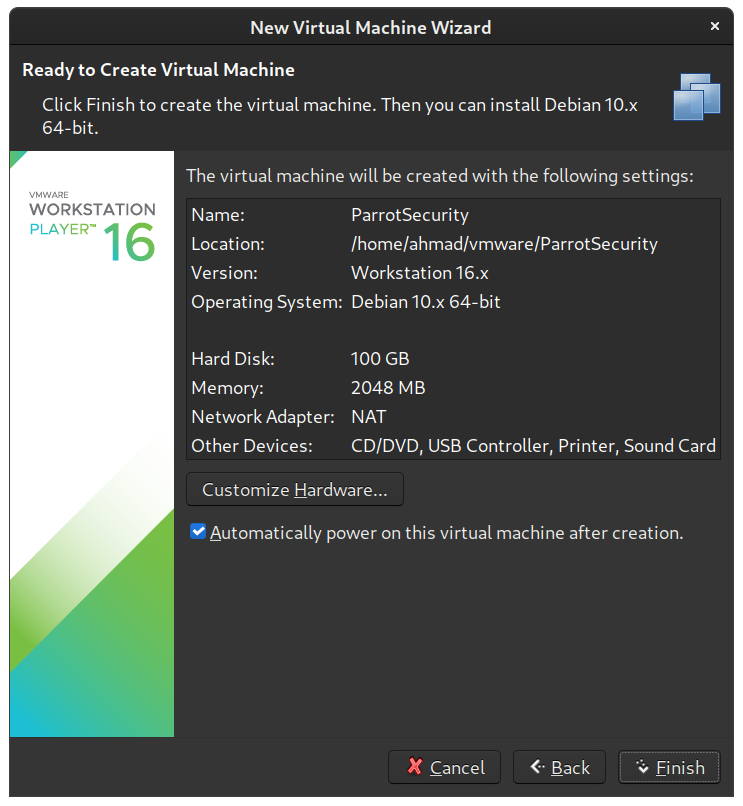
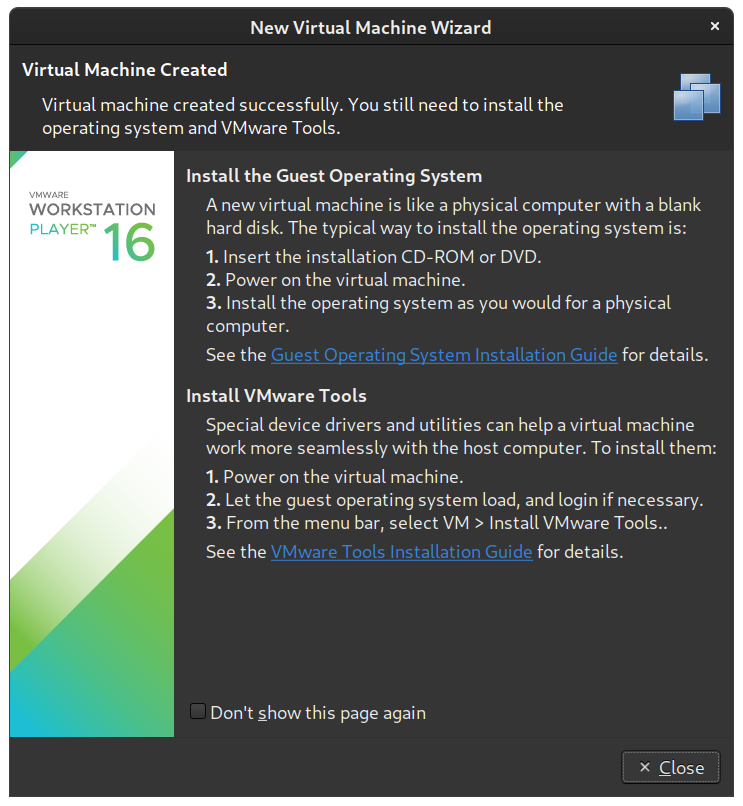
Setup VMware Workstation/Player VM
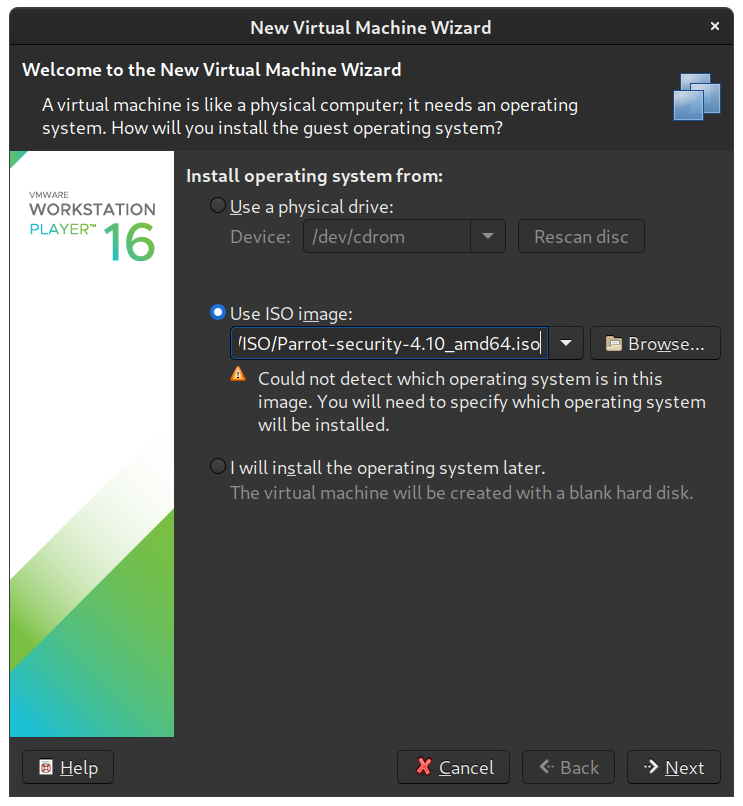
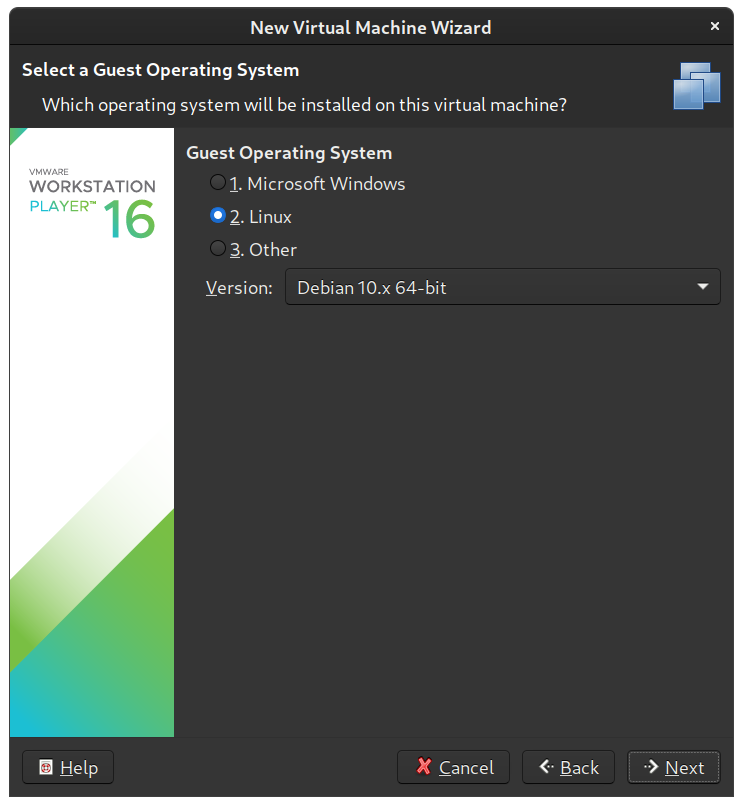
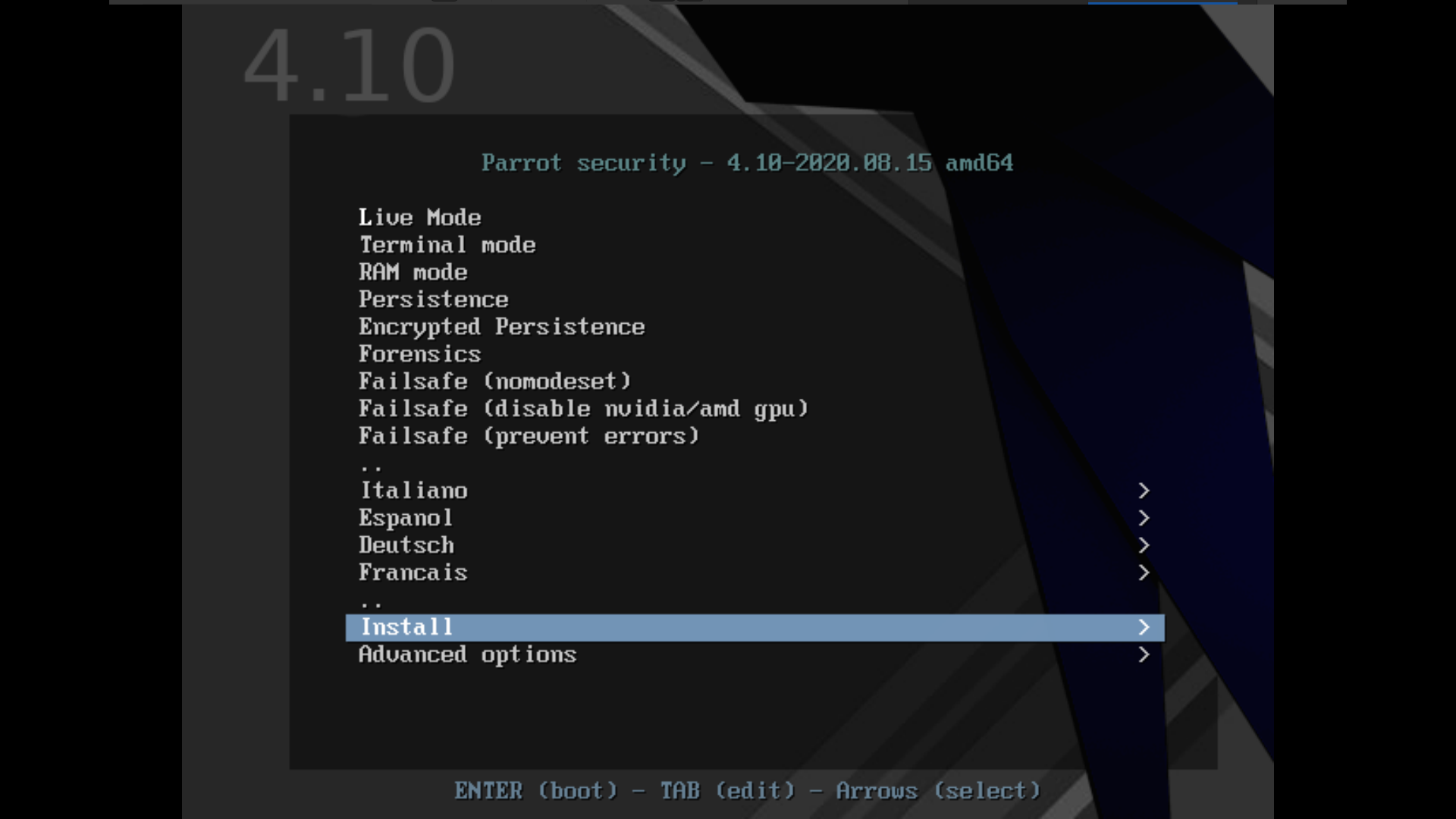
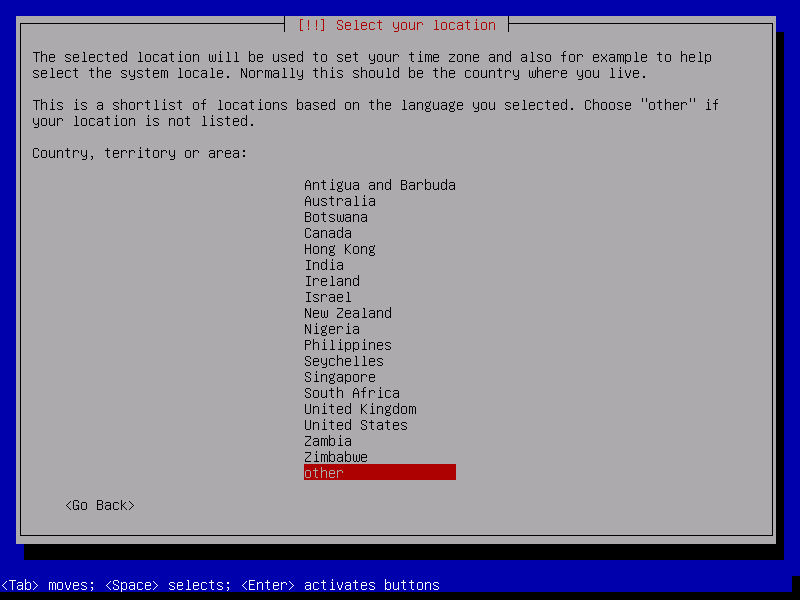
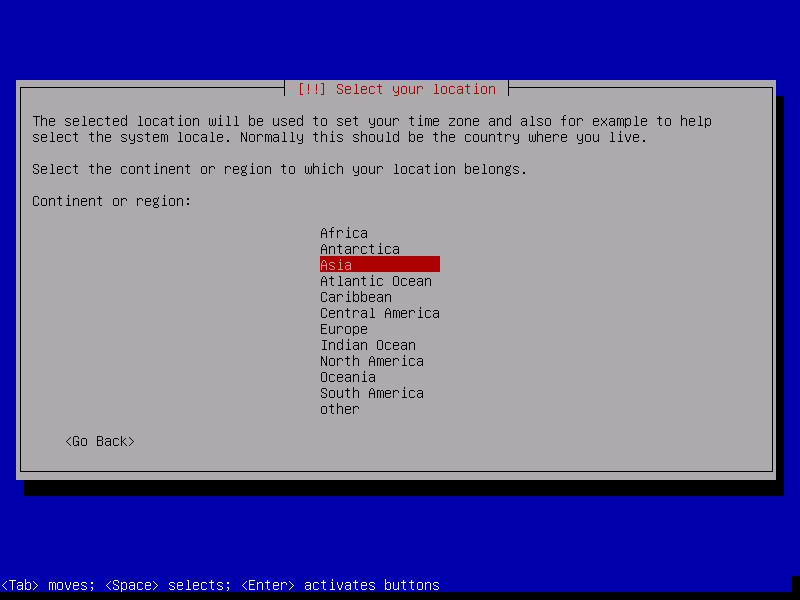
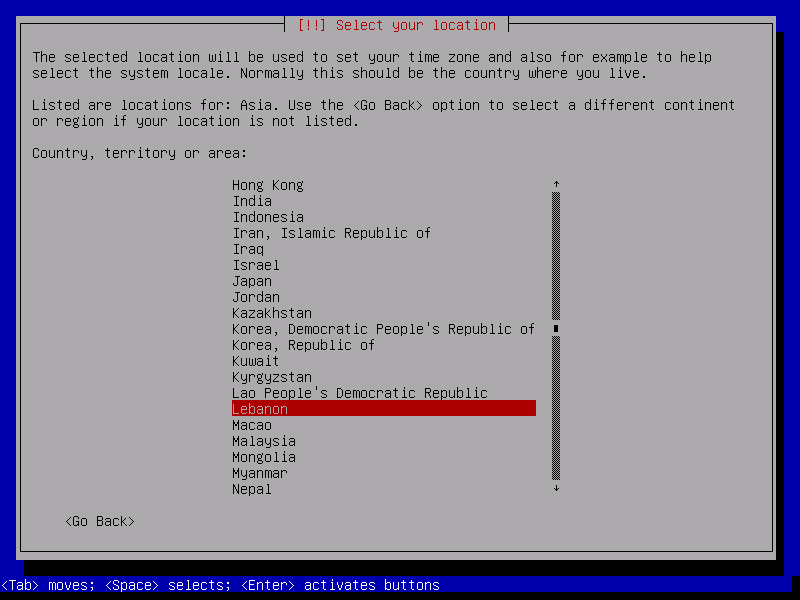
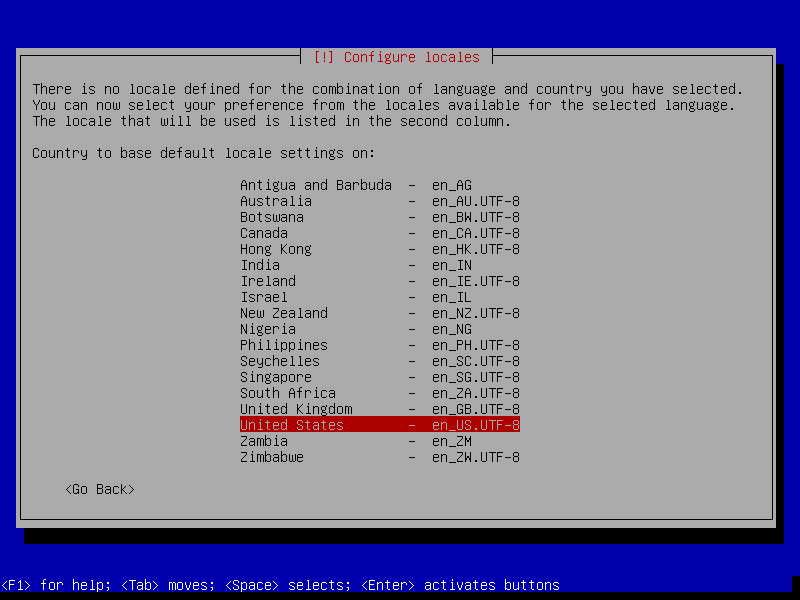
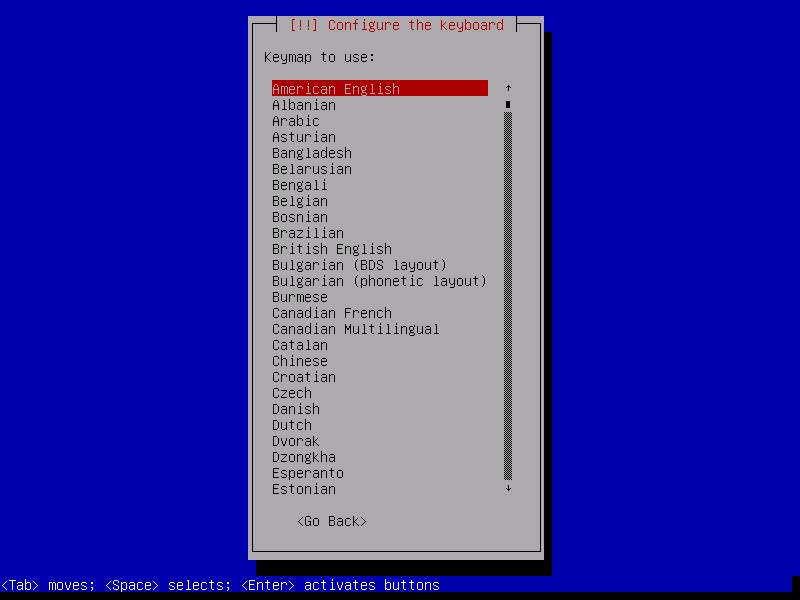
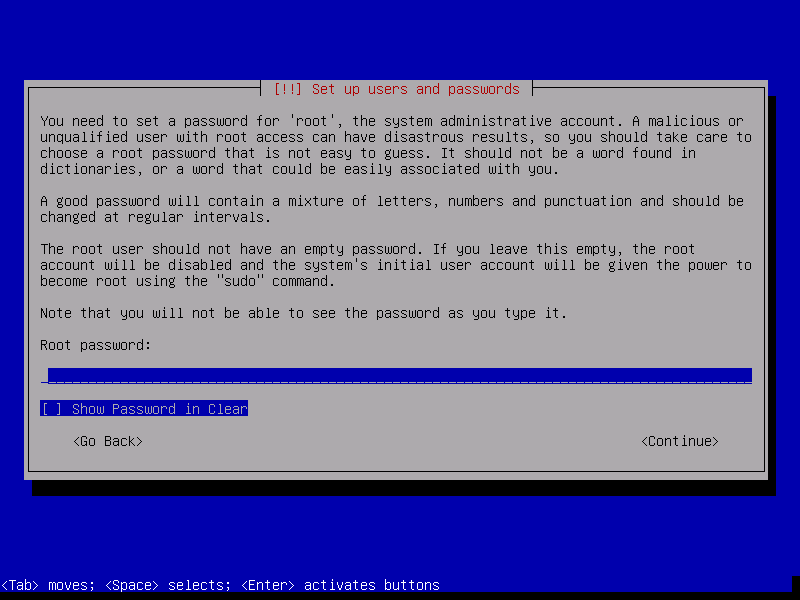
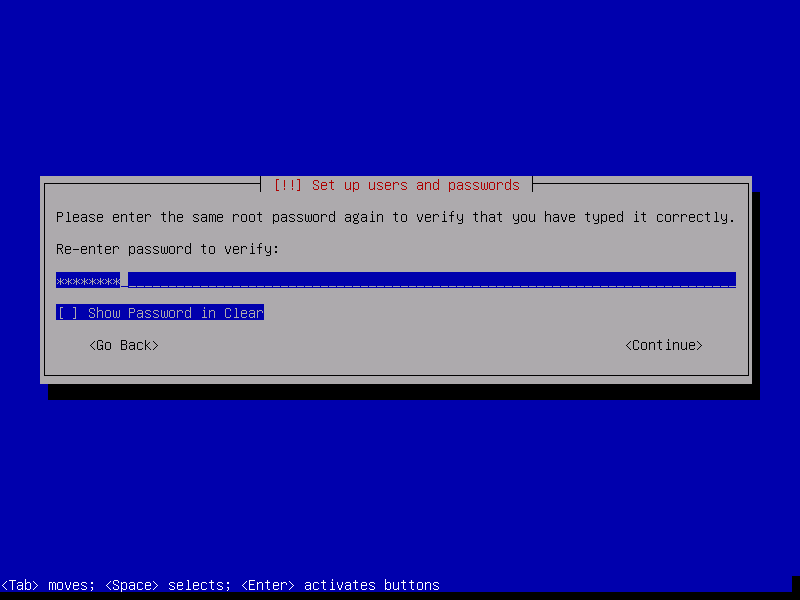
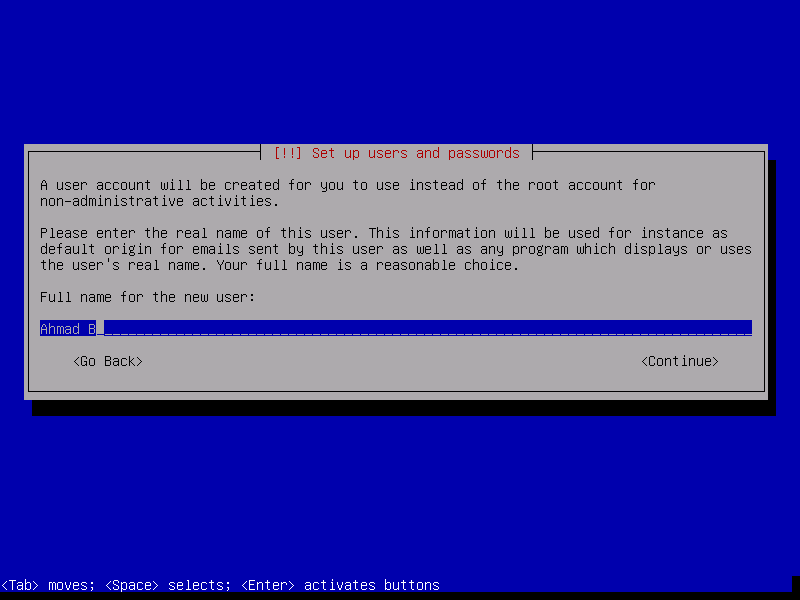
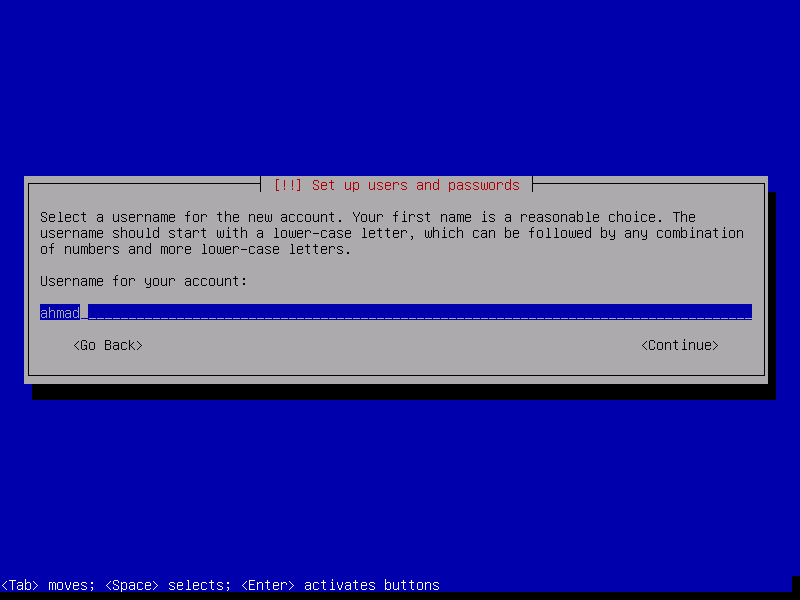
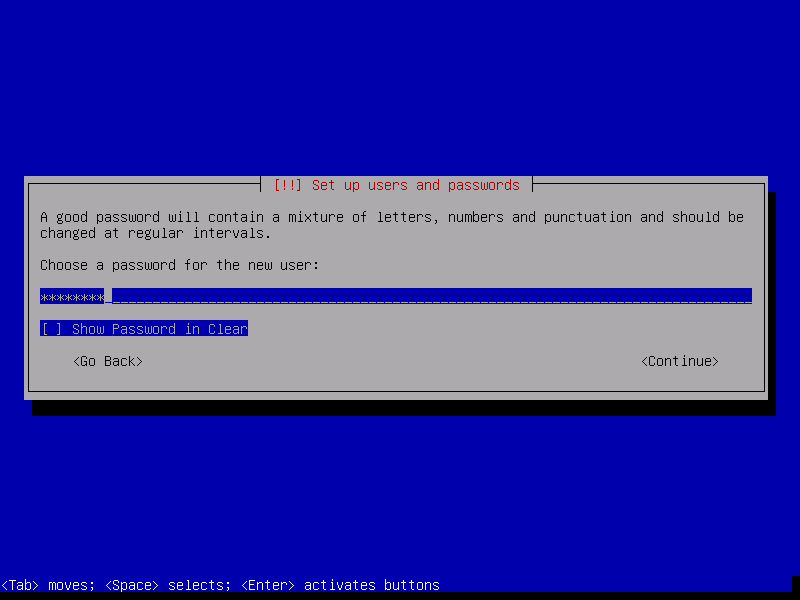
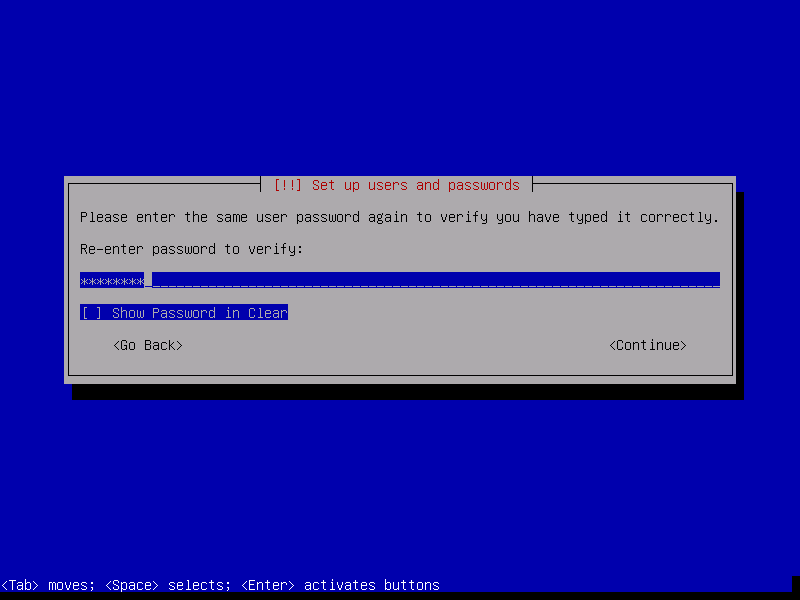
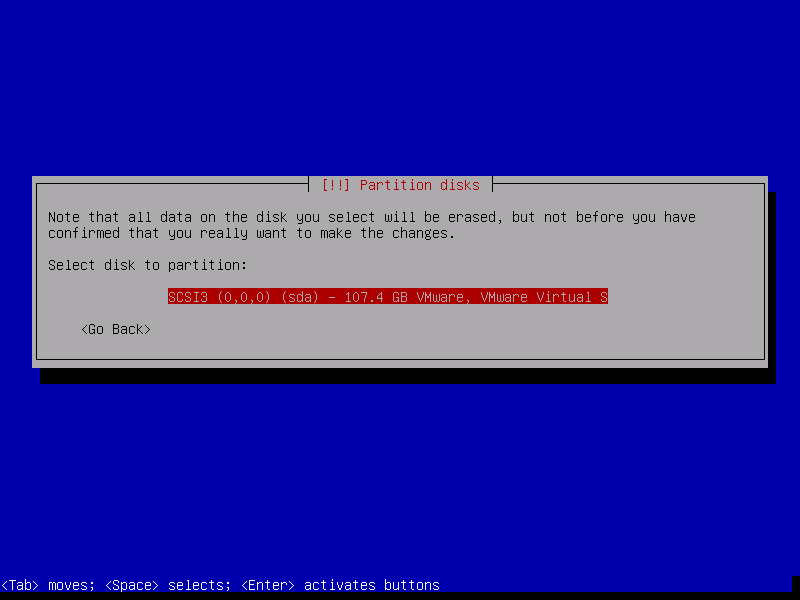
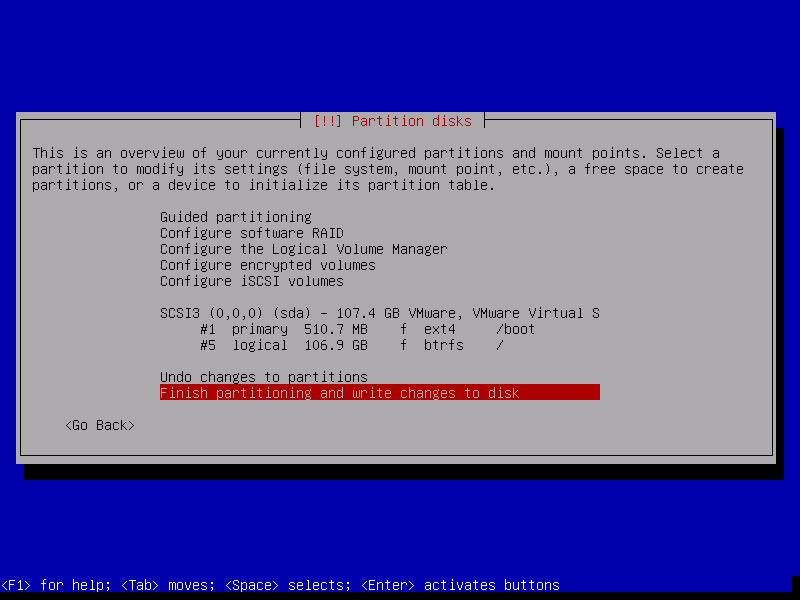
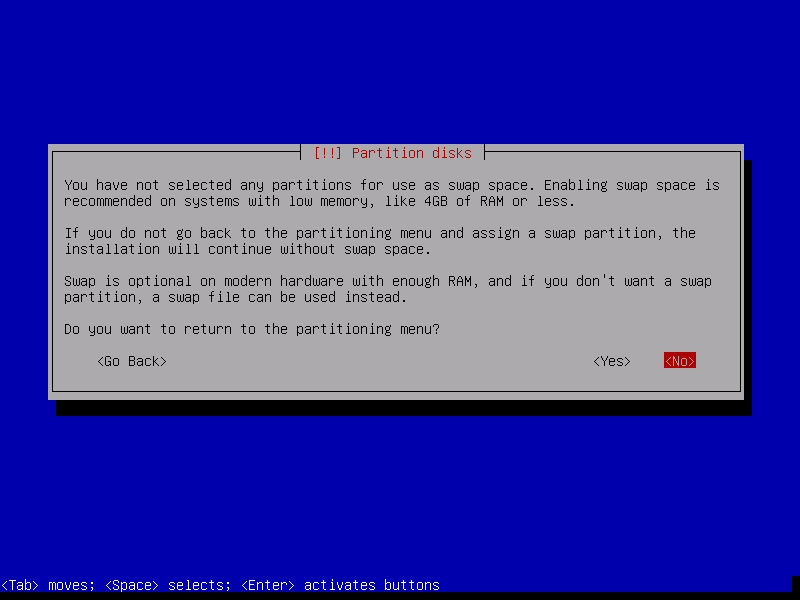
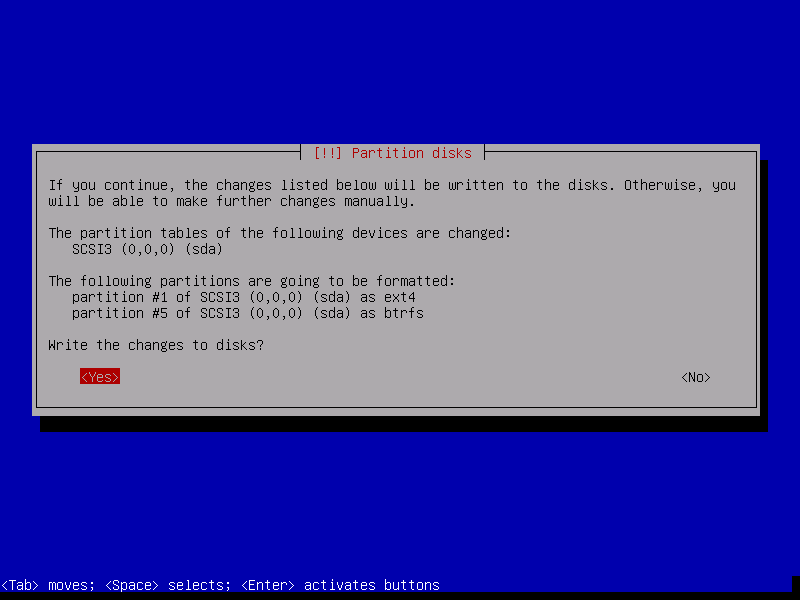
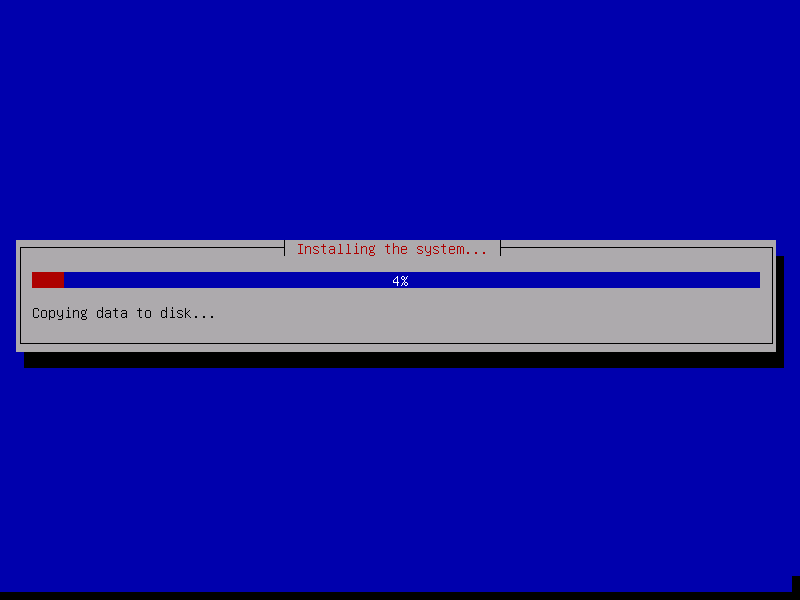
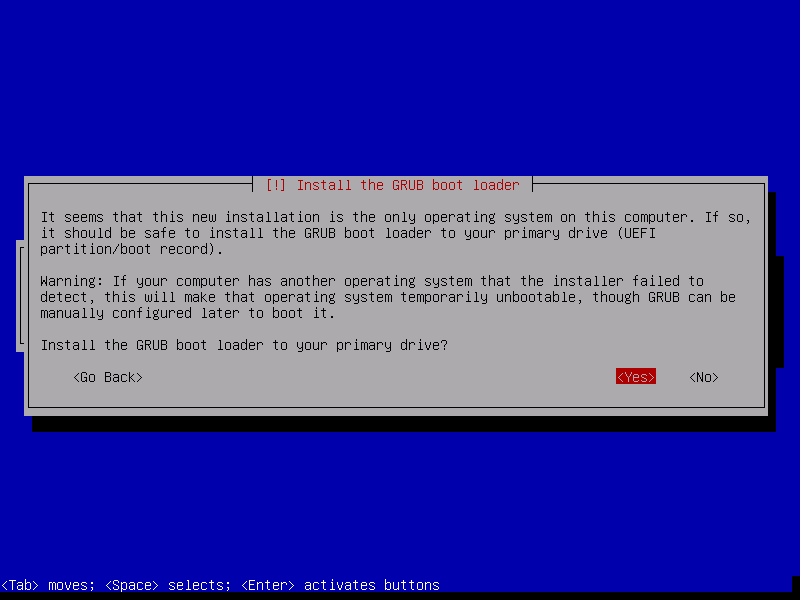
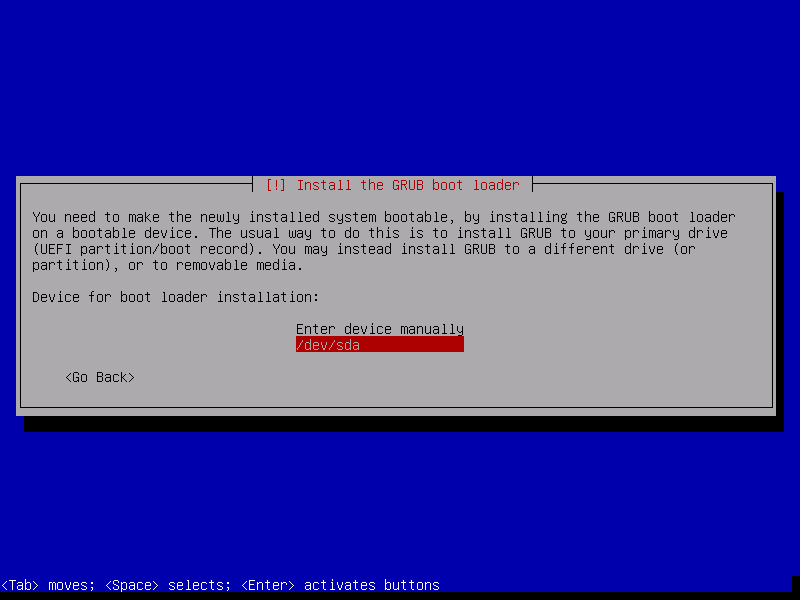
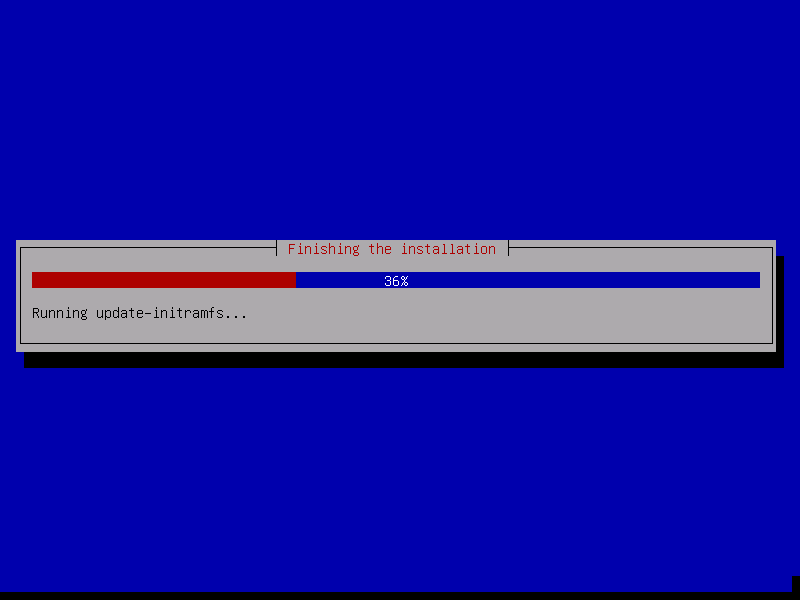
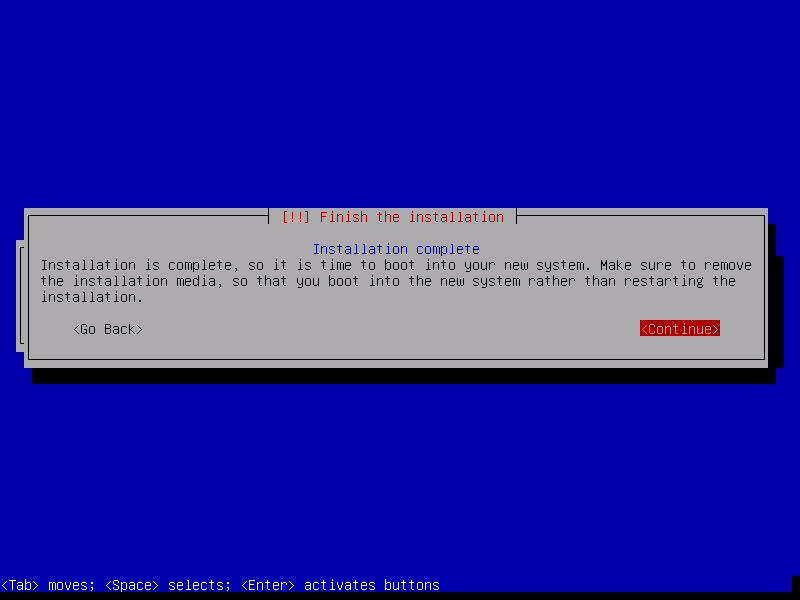
Install Parrot OS
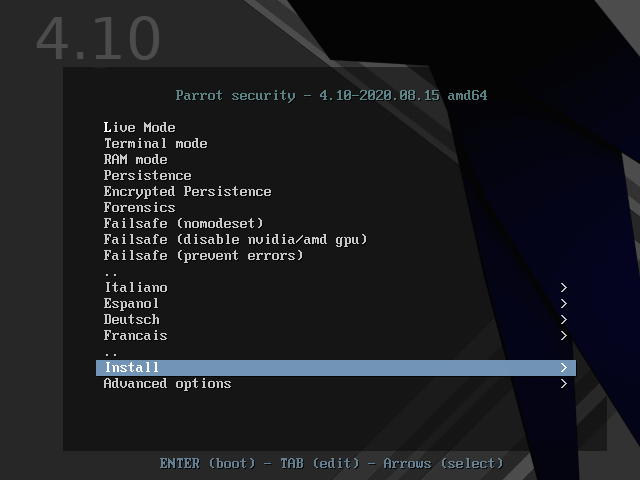
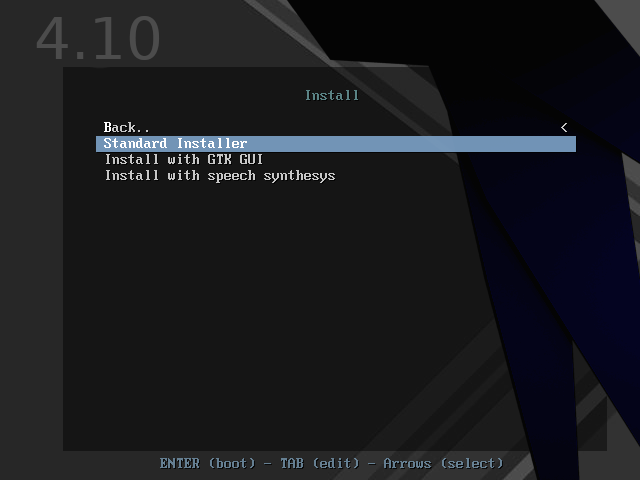
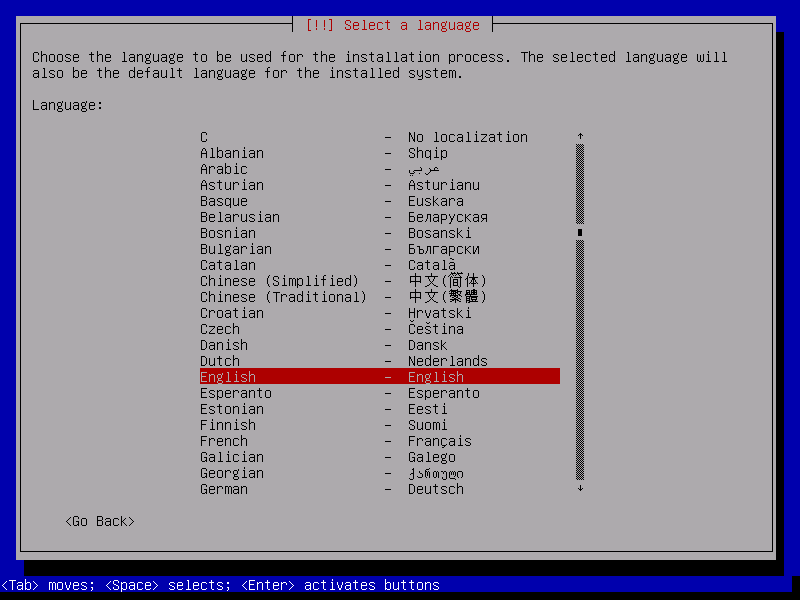


373 Words
2021-06-05 08:03