9 minutes
Getting Started with GNU Linux
Introduction
RTM: Read The Manual
man PAGE will display the system reference MANual PAGE, for example man ifconfig
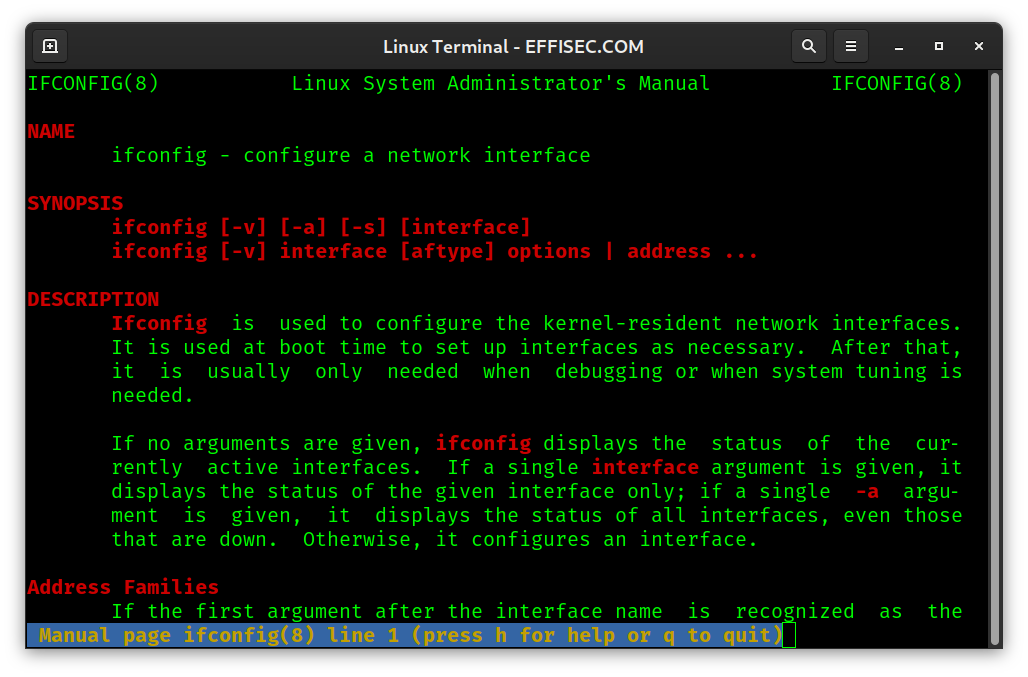
Many systems also come with info (INFOrmation) documents and can be used similar to man, for example info ifconfig.
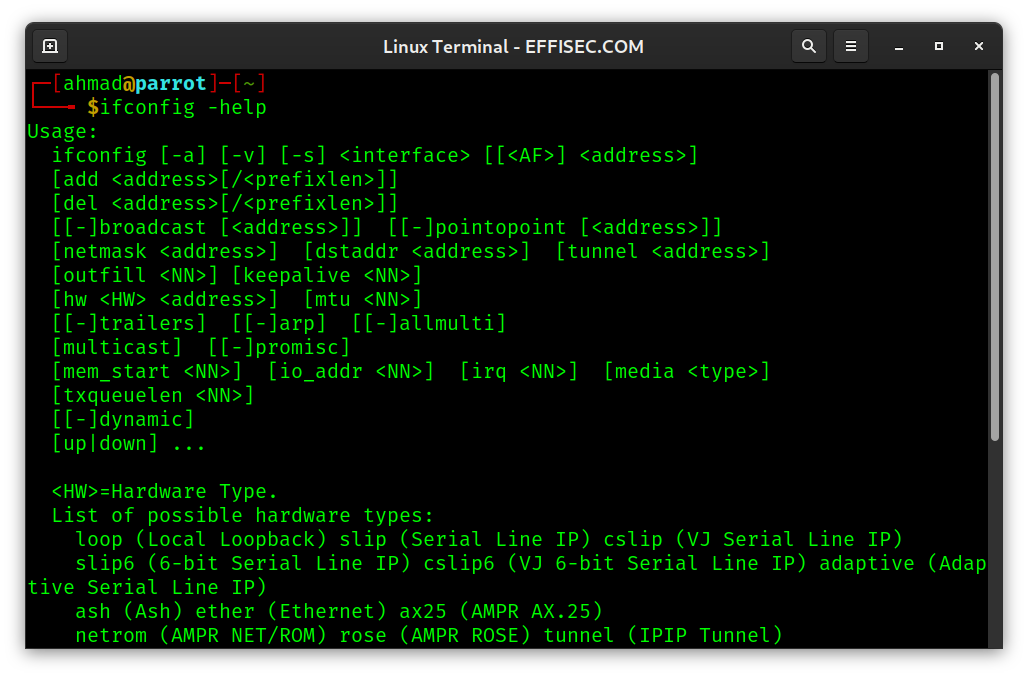
COMMAND --help or COMMAND -h usually displays basic HELP, for example ifconfig --help will display short help about using ifconfig.
Users
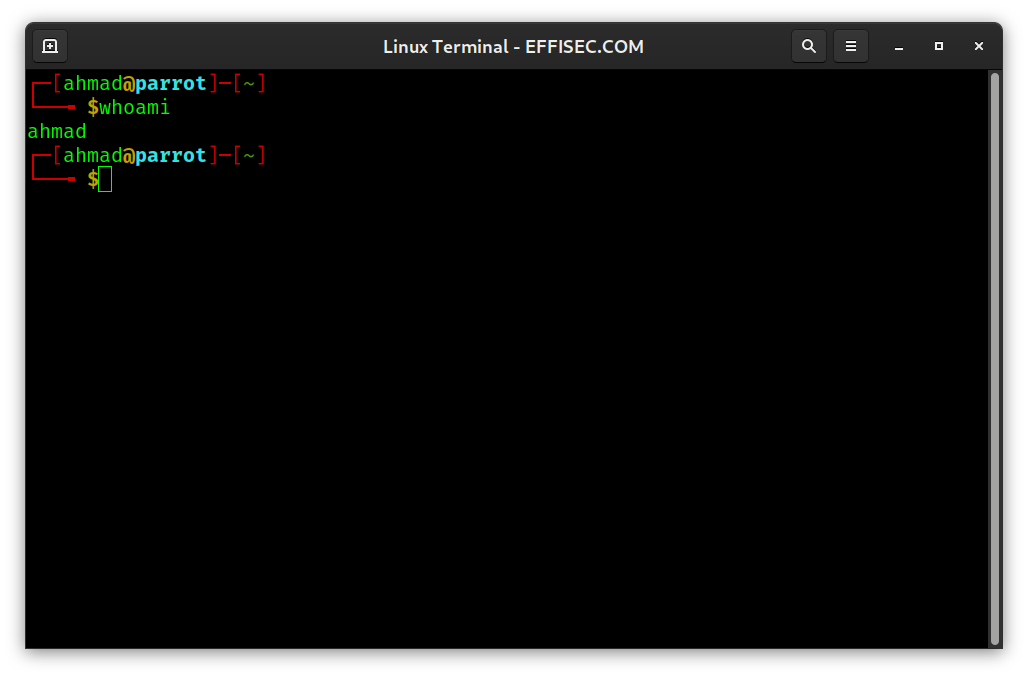
whoami returns the effective user ID.
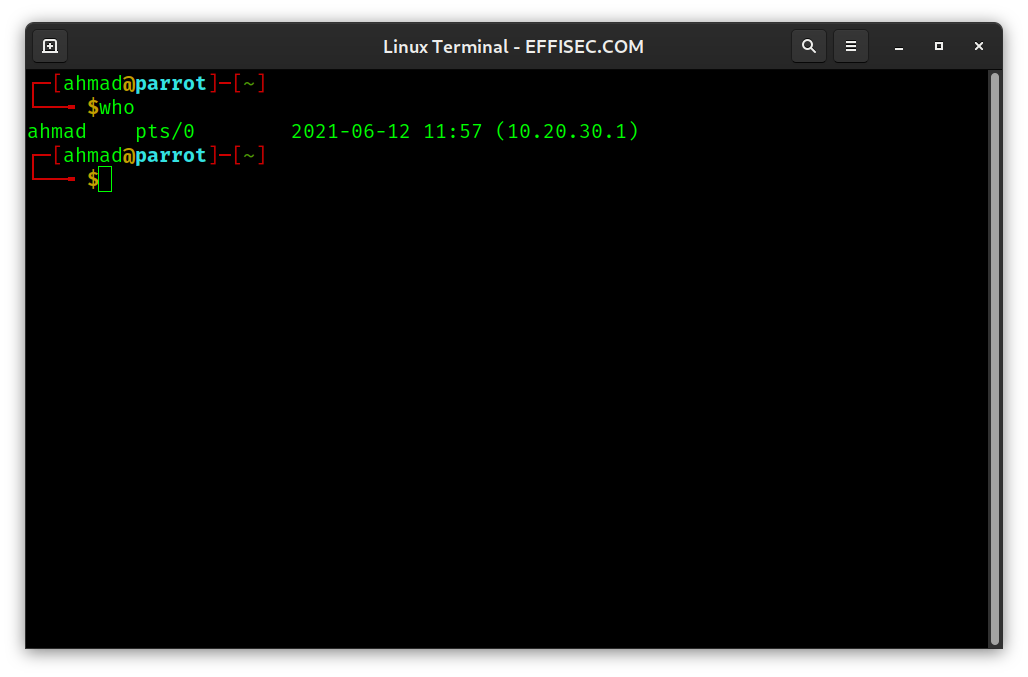
who shows the other users WHO are logged on.
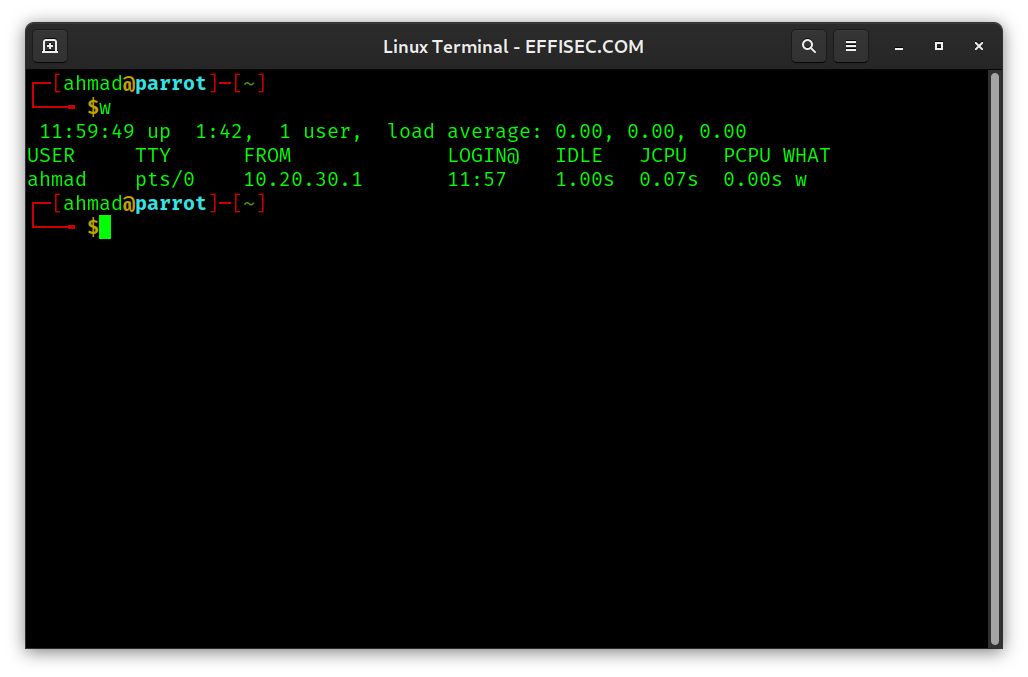
w shows you Who is logged in and what they are doing.
su USER lets you execute commands as a Substitute User.
sudo COMMAND lets you execute a commands that requires SuperUser permissions to DO. For instance, adding a user requires sudo to precede the adduser command.
adduser USERNAME allows you to create and ADD a new USER to the system and setup his name and home directory.
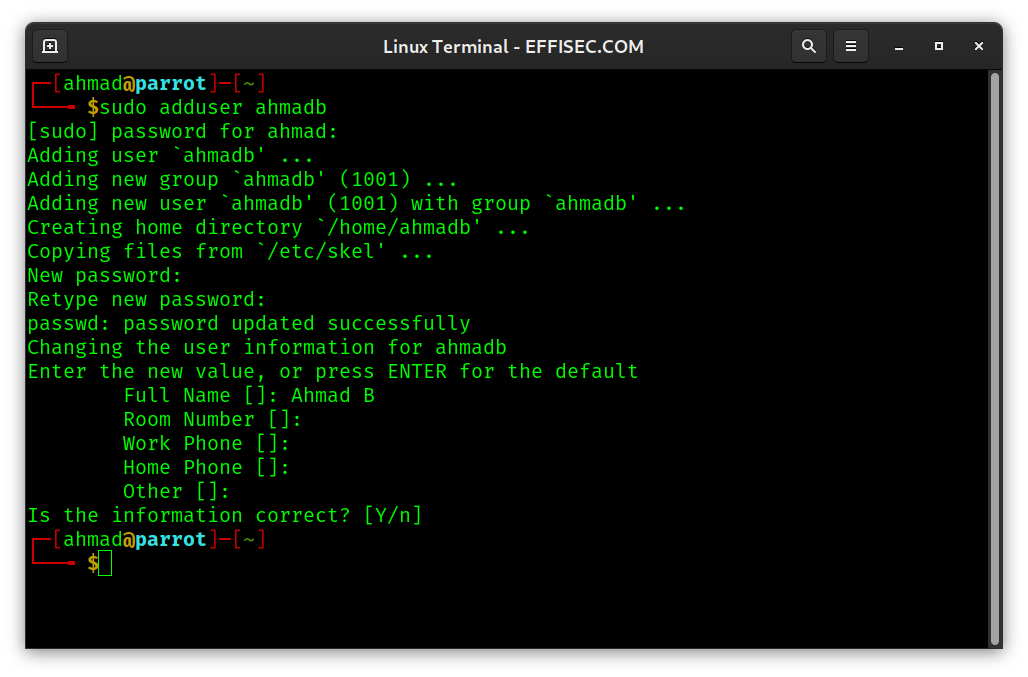
useradd is similar to adduser; however, it is not interactive and all the values can be provided via the command line arguments.
userdel DELetes the specified USER.
System Info
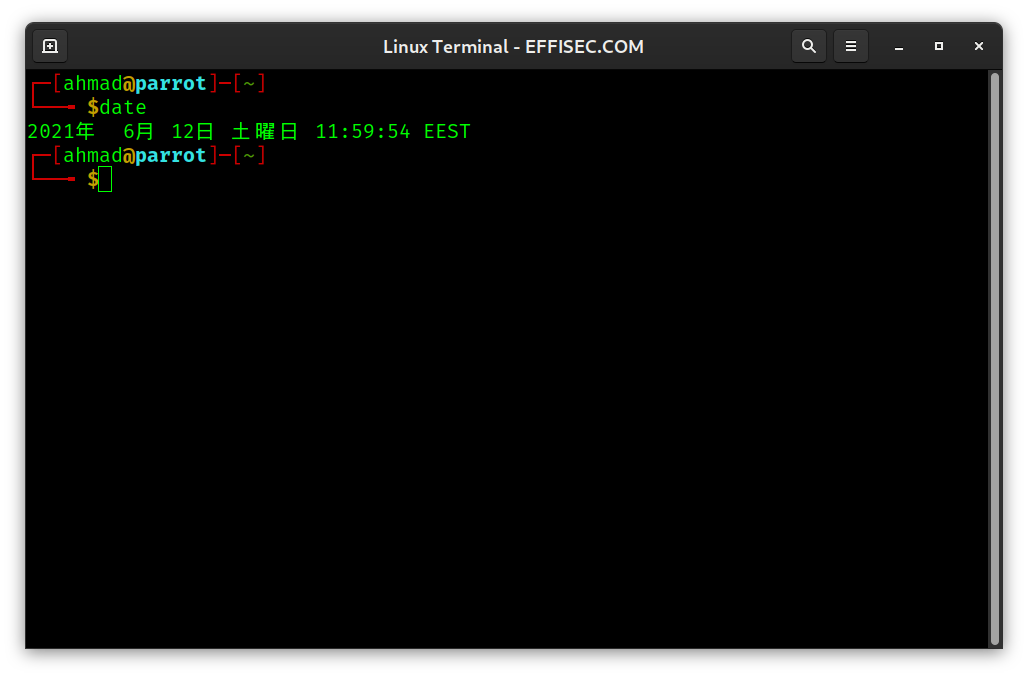
date can be used to display or set time and DATE.
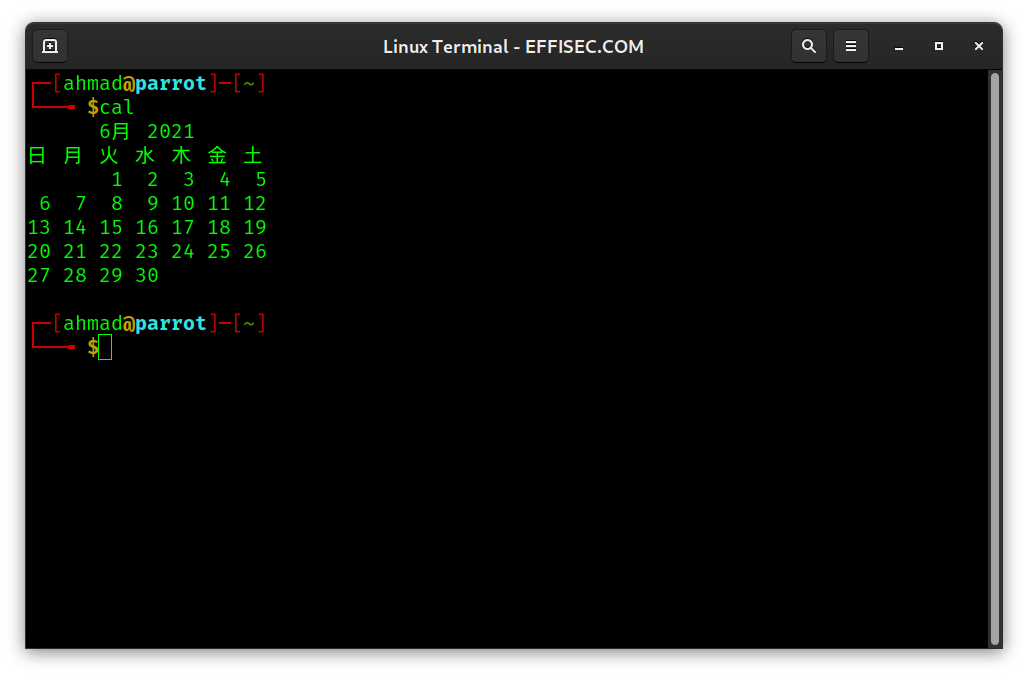
cal displays CALendar.
du provides Disk Usage estimate.

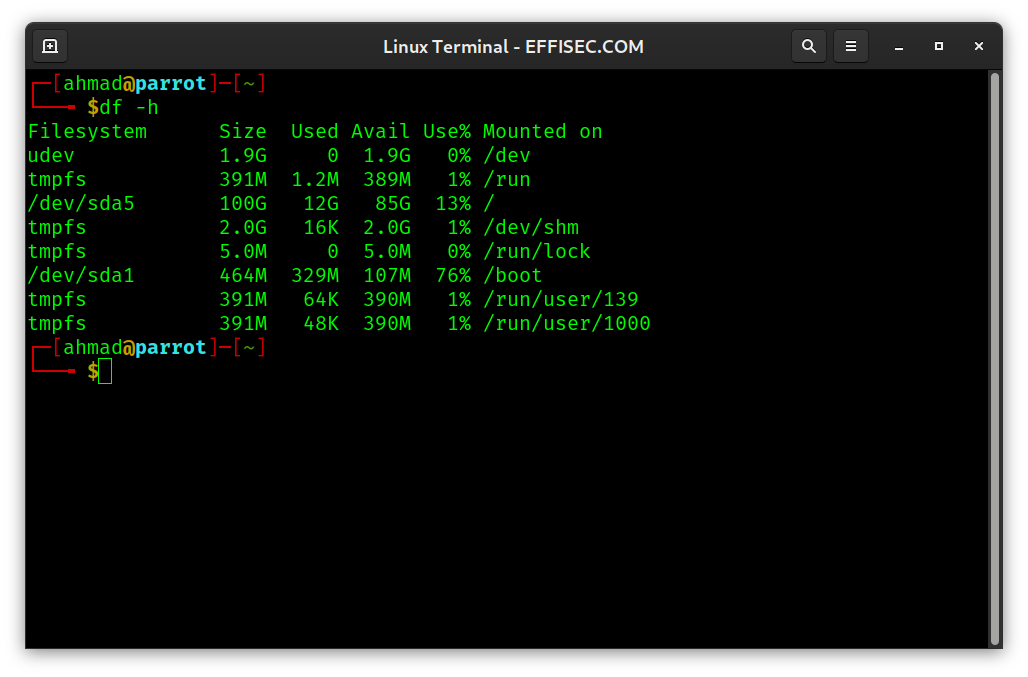
df returns Disk File system usage. Think of it as answering the question, is the Disk Filled yet?. df -h returns the result in more Human-readable format (units), by choosing suitable units automatically.
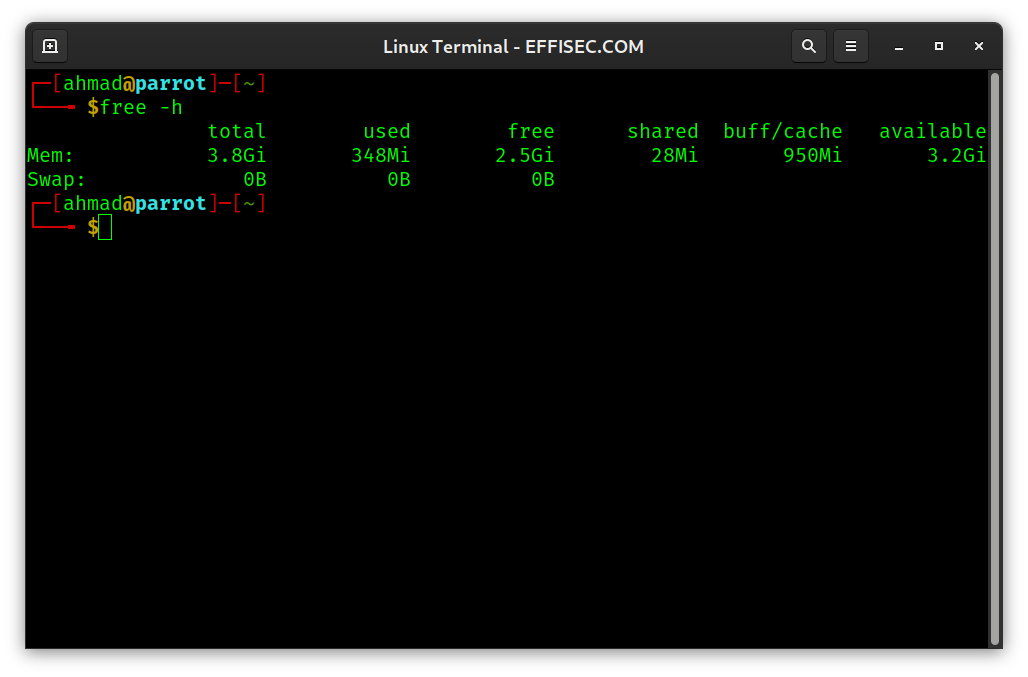
free returns the amount of used and FREE memory available on the system. free -h provides the values in Human-friendly units.
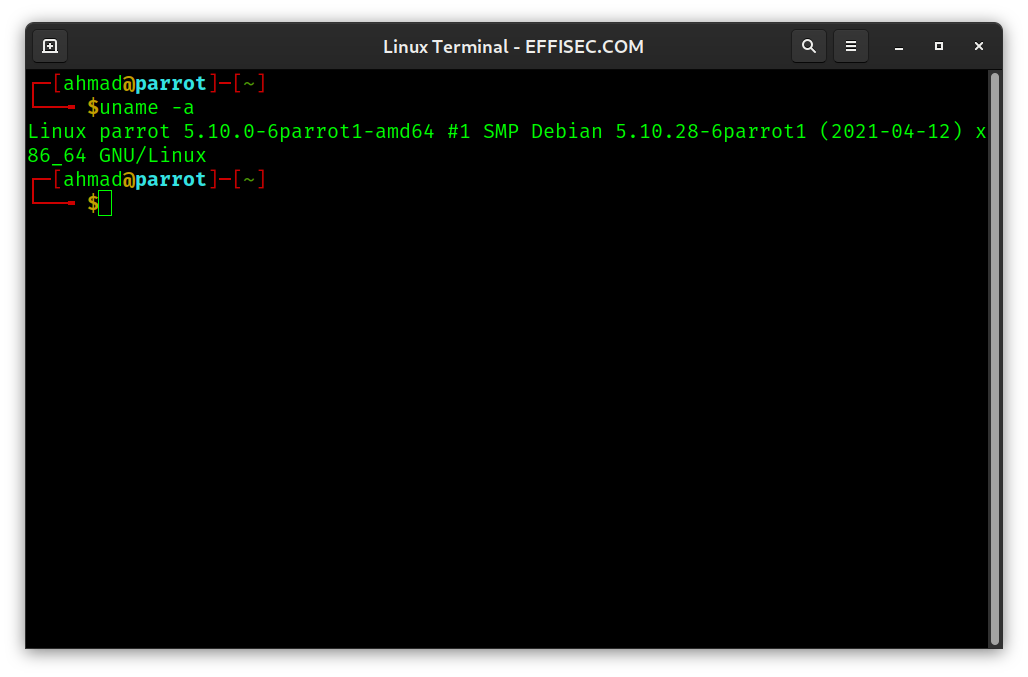
uname -a displays system information, including Unix NAME. This is an easy way to know the version of the installed Linux kernel.
Process Management
systemctl OPTION SERVICE allows you ConTroL the SYSTEM services. You can check the status of a service, for example, systemctl status httpd.service. You can also start a service systemctl start httpd.service or stop it systemctl stop httpd.service.
You can enable a service to start with the system, systemctl enable sssd.service or disable it, systemctl disable sssd.service.
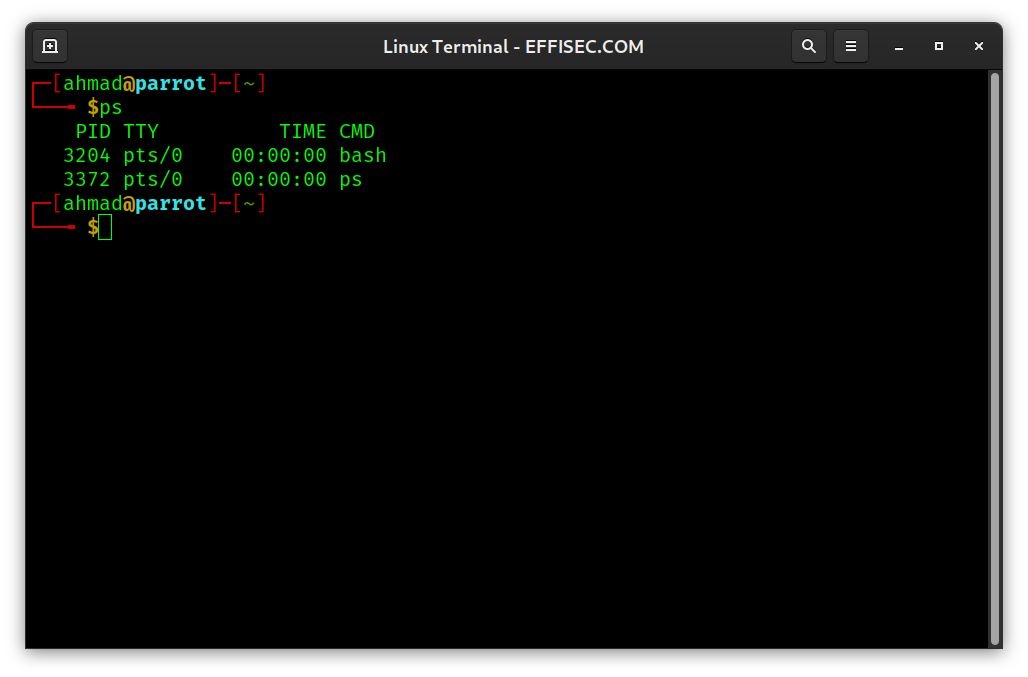
ps displays Processes’ Snapshot.
ps axu displays All processes in BSD-style along with User-ids.
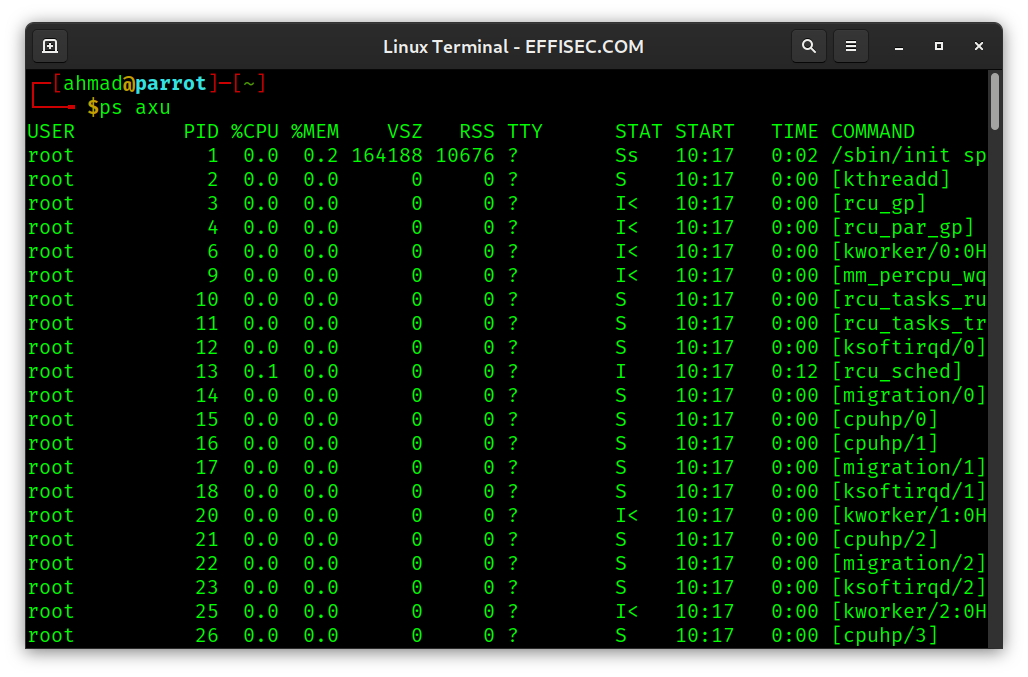
After checking the running processes, you can kill any process by providing its ProcessID with the command kill PID. If you don’t own the process, you cannot kill it, unless you use sudo kill PID.
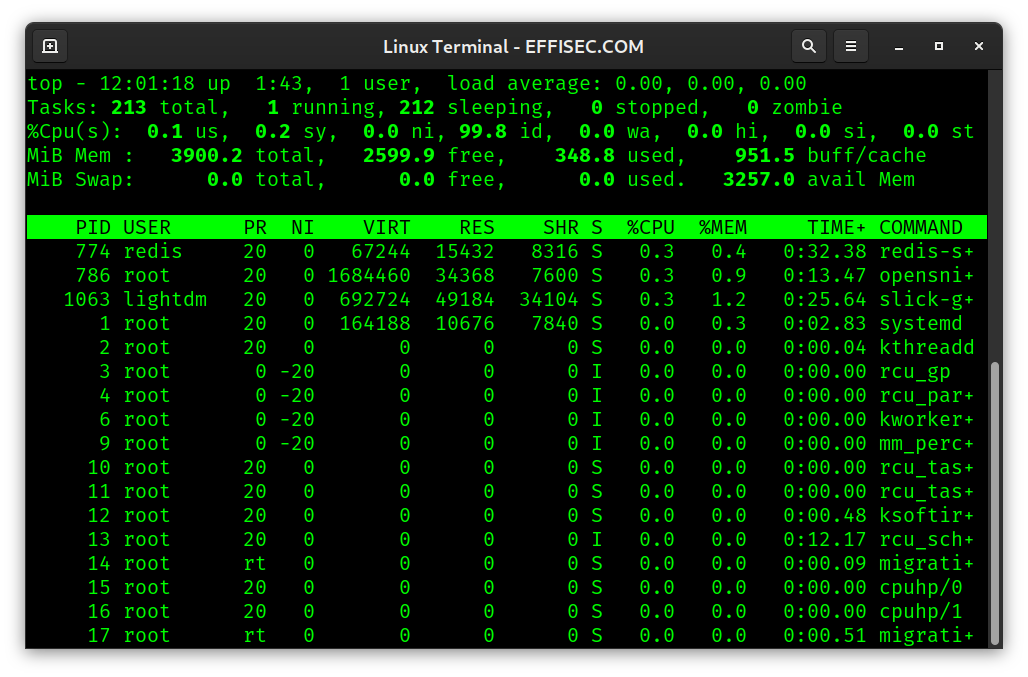
top shows the TOP resource-intensive processes.
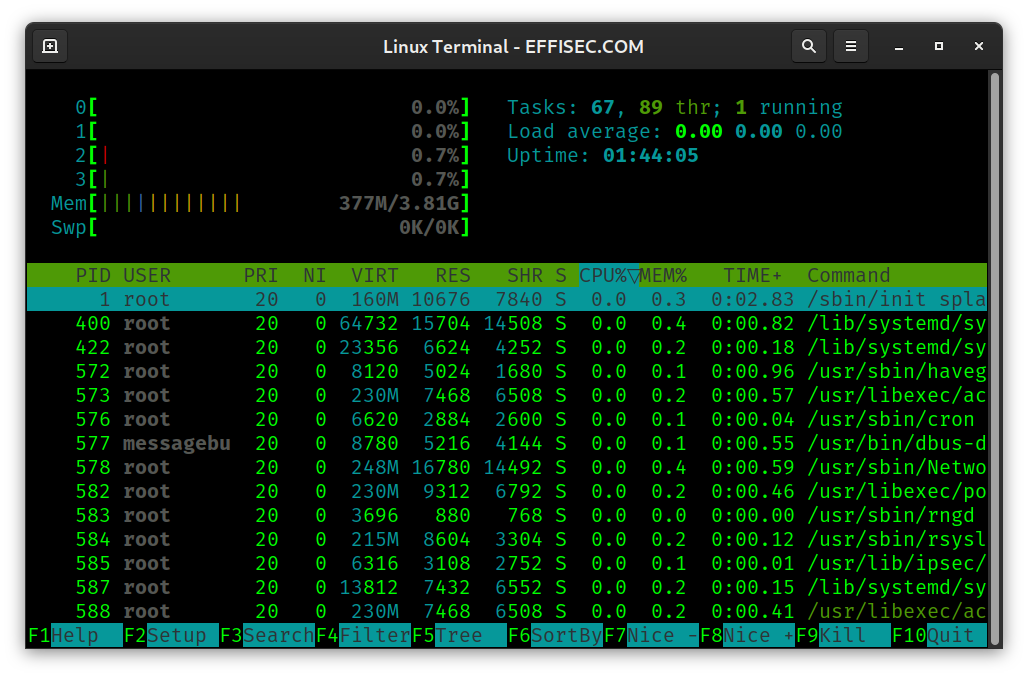
htop similar to top, but provides additional features including Horizontal scrolling.
command & allows you to start the command and let it run in the background.
command1 && command2 indicates that you want command2 to execute after and if command1 completes successfully.
fg brings a command to the ForeGround and resumes it if it is paused.
bg resumes the command in the BackGround.
File Creation & Browsing
ls LiSt files in a directory. Default would be the current directory. (This is similar to dir on MS Windows command/cmd.)
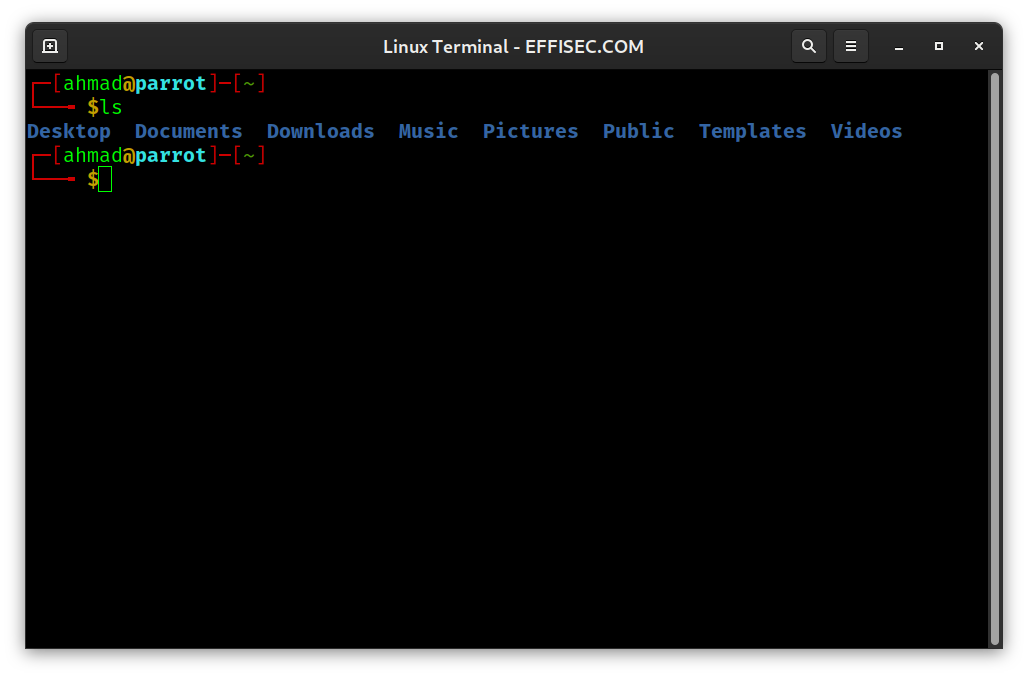
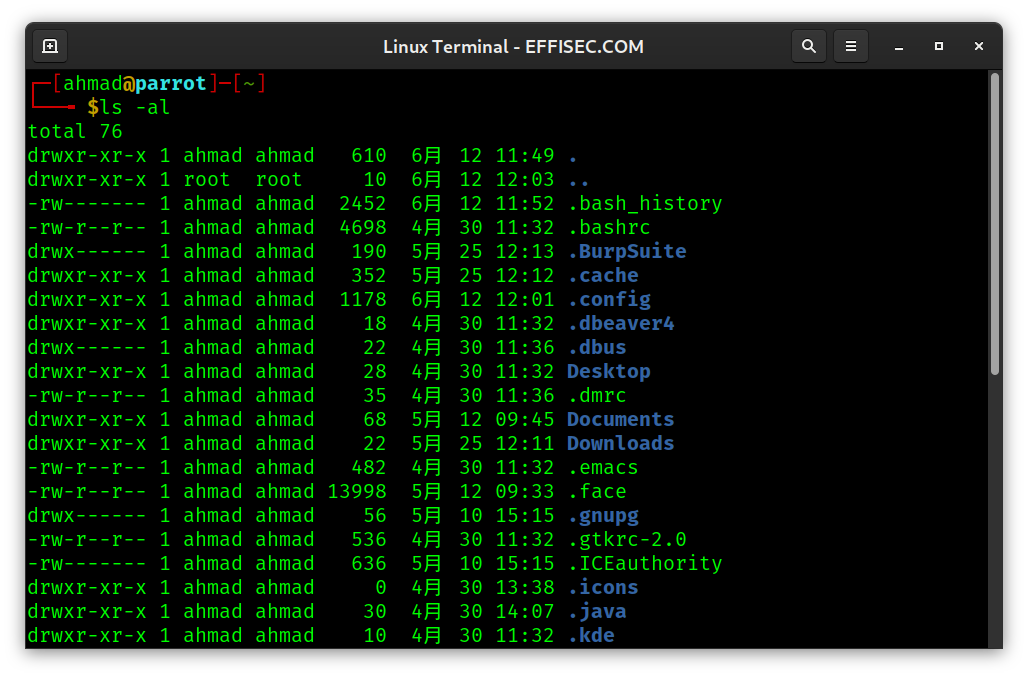
ls -al To display hidden files, use -a. In a Linux (and UNIX) system, hidden files start with a .. File details, such as permissions, owner, date, etc. can be displayed using -l.
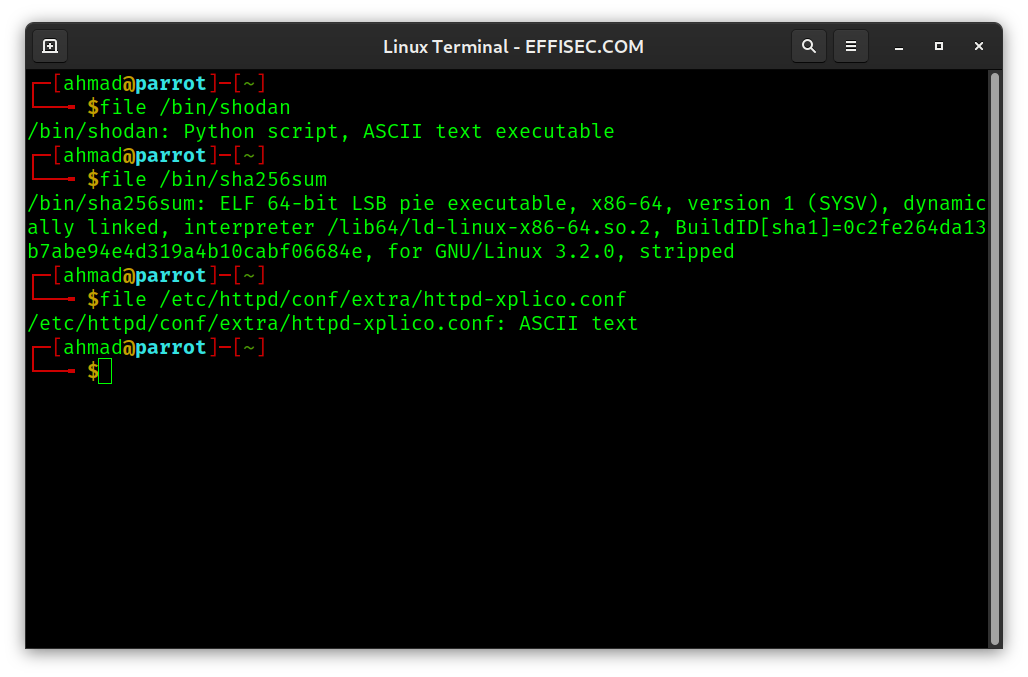
file FILE is useful utility to find the filetype based on its signature. Signature refers to the first few bytes of a file.
touch FILE lets you update the timestamp of an existing file. If the file does not exist, it will be created. touch FILE is the easiest way to create an empty file.
cat FILE will conCATenate the file on the standard output, i.e. terminal screen. If you want cat to write to a file instead of writing on the standard output, all you need to do is to direct the output using the greater-than symbol, >. cat > FILE will overwrite the file with the input read from the standard input, i.e. your keyboard. If you want to append to an existing file, instead of overwriting, you need to use >>, as in cat >> FILE.
Linux (and UNIX) allows you to PIPE the output of one command to serve as input for another command, using the PIPE symbol, |, with the general syntax COMMAND1 | COMMAND2. Here are a few examples:
dmesg | grep failedwill print kernel messages that contain failed.history | tailwill show the last 10 commands in history.history | cut -c 8-will display 8th character onwards from each line.
head -n NUMBER FILE displays the first number of lines from the the file. head -n 5 log.txt displays the first 5 lines of log.txt.
tail -n NUMBER FILE1 displays the last number of lines from the file. tail -n 20 error.txt displays the last 20 lines of error.txt.
File Management
pwd lets you know where you are on the system as it Prints current Working Directory.
cp SOURCE DEST lets you CoPy source file to a destination.
mv SOURCE DEST lets you MoVe source file to a destination. mv is also used to rename a file, mv OLD_NAME NEW_NAME.
mkdir DIRECTORY MaKes DIRectory.
You can rm FILE to ReMove a file and rm -r DIRECTORY to remove a directory, -r is for recursive.
chmod +x FILE makes a file executable. This is handy when you create a shell script or download a Linux executable from the Internet. You can control three permissions:
- Readable:
+rto make it readable. - Writable:
+wto make it writable,-wto prevent writing it. - Executable:
+xto make it executable,-xif it is not executable, such as a document.
These permissions can be assigned using Octal numbers:
- 4 for Readable
- 2 for Writable
- 1 for Executable
Obviously, you can combine permissions as you see fit. Here are some examples:
- 5 is readable and executable (5 = 4 + 1), but not writable.
- 6 is readable and writable (6 = 4 + 2), but not executable.
- 7 is readable, writable and executable (7 = 4 + 2 + 1)
- 4 is readable, but not writable nor executable.
You can also control permissions for 3 entities:
- Owner
- Group
- Everyone
chmod 750 script.sh means that the owner has RWX permissions, his/her group has RX permissions, everyone else has no access permissions.
chown OWNER FILE changes the file owner.
Handling Compressed Files
tar stands for Tape ARchive.
tar -vcf FILE.tar DIR will create a tar file. V, C and F stand for Verbose, Create and File. The filename follows the -f flag.
tar -vczf FILE.tgz DIR This is similar to the above, except for the addition of the -z flag, which tells tar to use gZip compression. This creates a gzipped tarball. The extension is .tgz or .tar.gz.
tar -vxzf FILE.tar.gz The flag -x indicates that you want to eXtract gZip tar.
tar -vcjf FILE.tbz2 DIR For a smaller size, you can use bzip2 compression algorithm specified by the -j flag. The extension of a bzipped tar ball is .tbz2 or .tar.bz2.
tar -vxjf FILE.tar.bz2 similarly, the type must be specified when you want eXtract bzipped tar.
gzip FILE to compress a file replacing original.
gunzip FILE.gz to expand a file replacing gzipped version.
Network & Internet
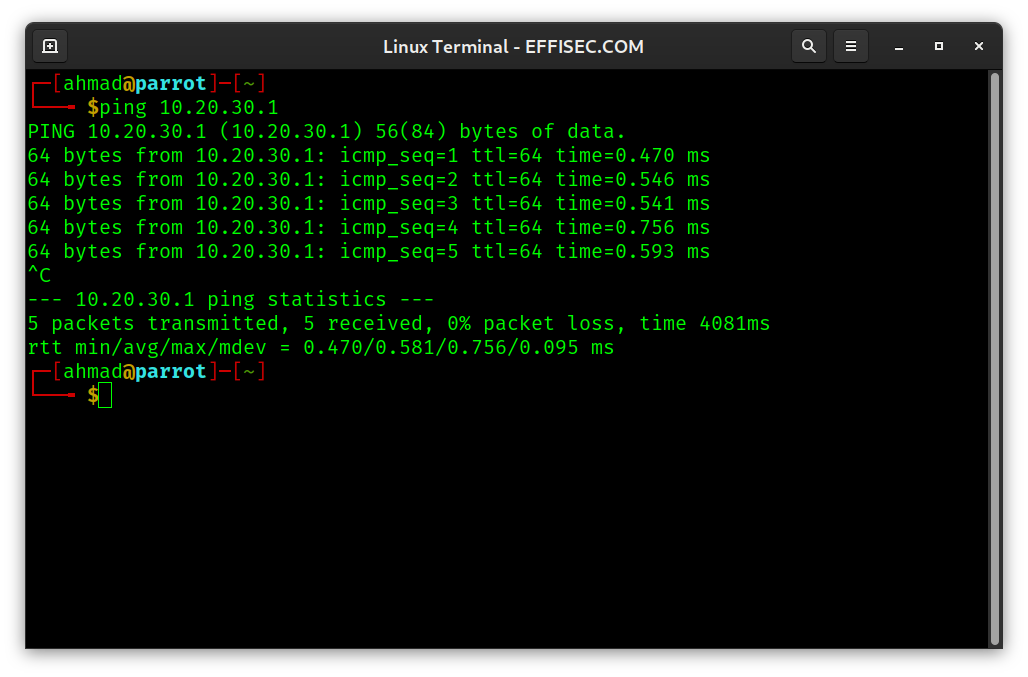
Network utilities, such as ping can be easily access from the terminal. ping HOST will keep sending ICMP echo requests (PING) till the user cancels by pressing CTRL+C.
Browsing the Internet from the Terminal
You can even browse the internet from the terminal using links. To start browsing, just type links followed by the URL, example type links www.effisec.com to visit the specified page. Try to use links to visit various websites and familiarize yourself with it. It is very handy if you don’t have access to a graphical web browser.
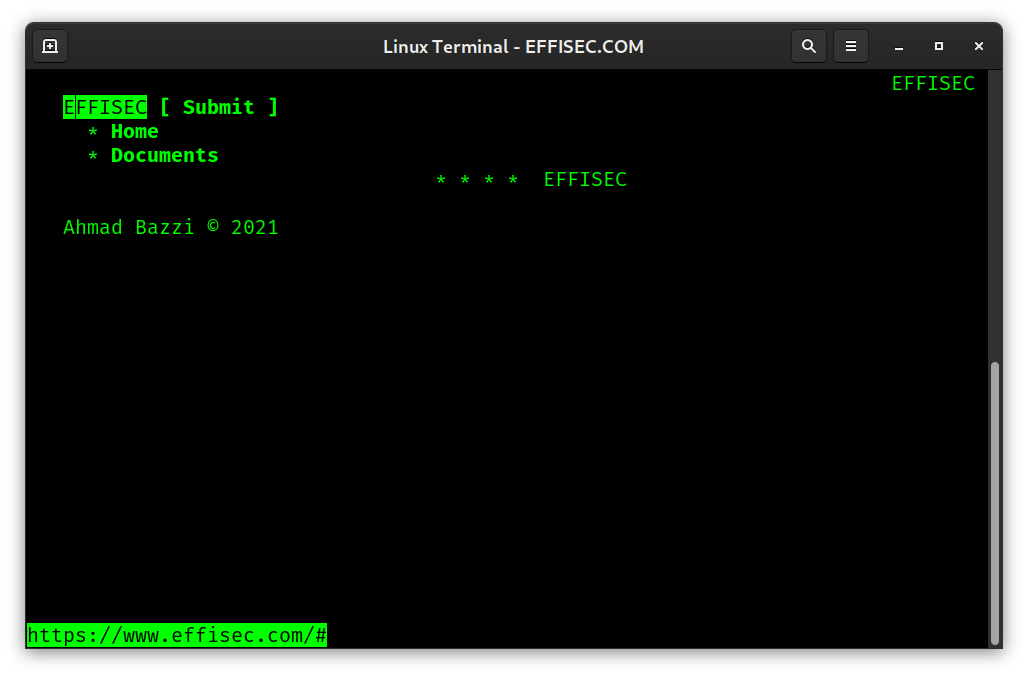
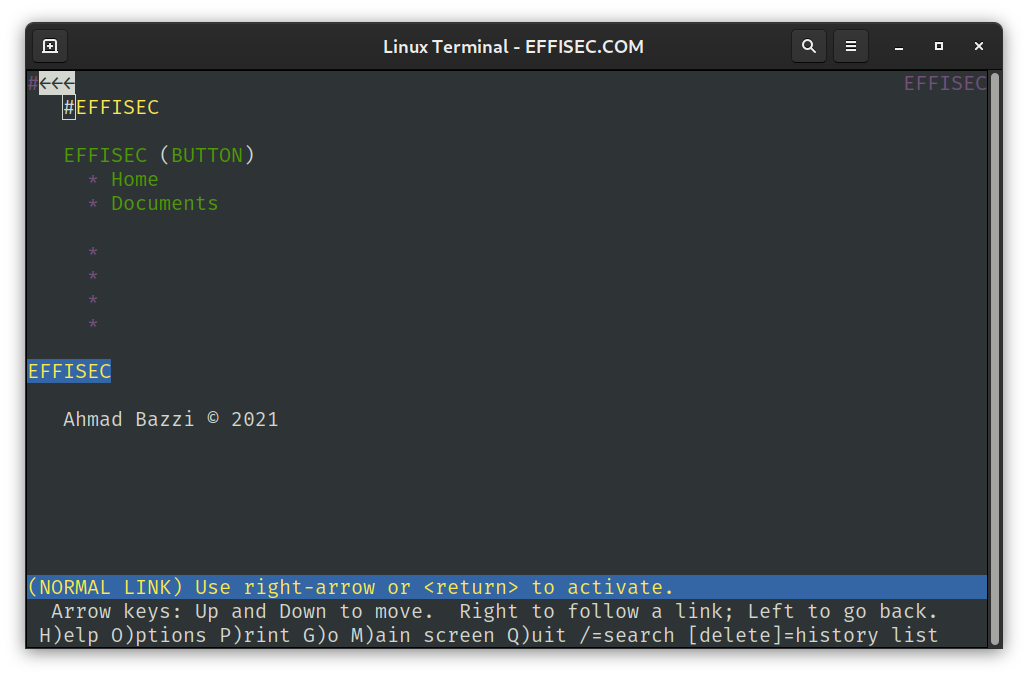
Another browser you can use on the terminal is lynx. Install it if you don’t have it installed already, and try to familiarize yourself with it.
Downloading Files from the Terminal
You can download files from the Internet using wget or curl. The most basic ways to use these two utilities would be:
wget -c URL downloads URL using Www GET. The -c lets you Continue (resume) downloading if disconnected.
curl -O URL downloads URL using Client URL. The -O tells curl to save the file with the same name as the remote version. curl has many uses that you can find a complete book about it, .
SSH
SSH stands for Secure SHell. This protocol allows you to remote manage a system, in addition to copying files.
ssh HOST tries to use ssh to connect to a remote host. It will use the local username as a login name.
ssh USER@HOST allows you to specify the username to ssh log in a remote host.
scp FILE USER@HOST:/PATH Secure CoPy file from local system to remote host
scp USER@HOST:/PATH/FILE . Secure CoPy file from remote host to local system
ssh-keygen uses SSH to GENerate KEY.
ssh-keygen -b 8192 to specify size for the SSH KEY GENerated.
ssh-copy-id -i /.ssh/KEY USER@HOST COPY SSH ID to a remote host. This is useful when you want to enforce public key login and disable password login.
Installing Packages and Updating Your System
If a command is not installed, you can easily install it using the default package management system.
RPM-Based using DNF (DaNdiFied yum)
In an RPM-Based distribution, such as RedHat and Fedora, you can issue the command dnf install PACKAGE.
dnf udpate -y will check for available updates and installs them. The -y flag will let the update proceed without waiting for your confirmation.
Debian-Based using APT (Advanced Package Tool)
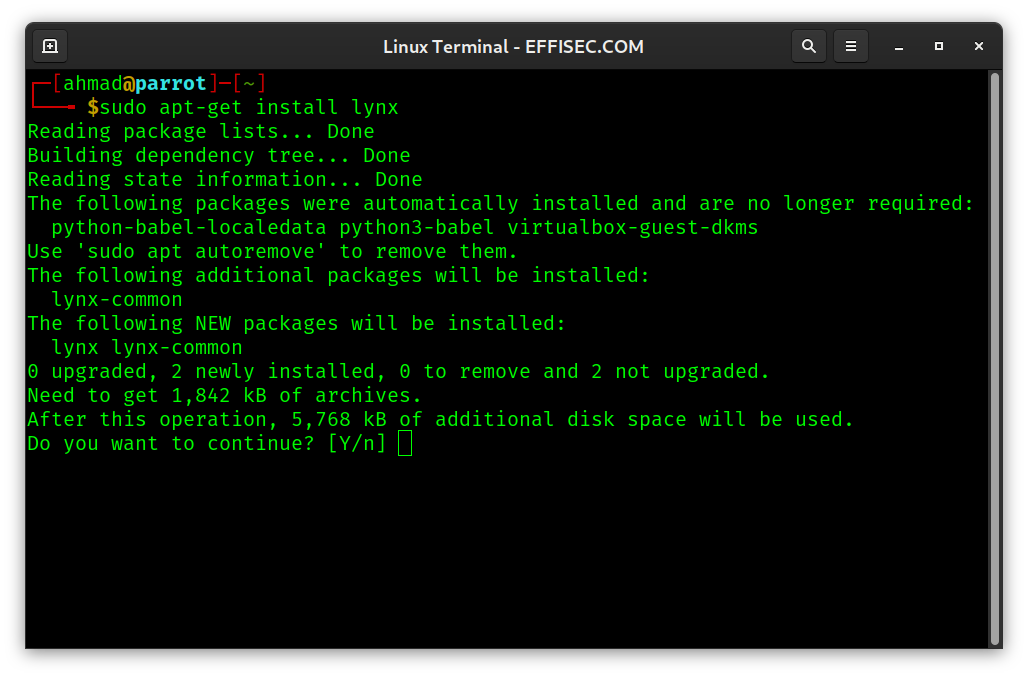
In a Debian-based distribution, such as Parrot and Kali, you can issue the command apt-get install PACKAGE to install the package of your choice. For instance, apt-get isntall lynx will locate lynx package from the configured repositories and confirms if you want to proceed with the installation. You need to choose Y if you decide to proceed.
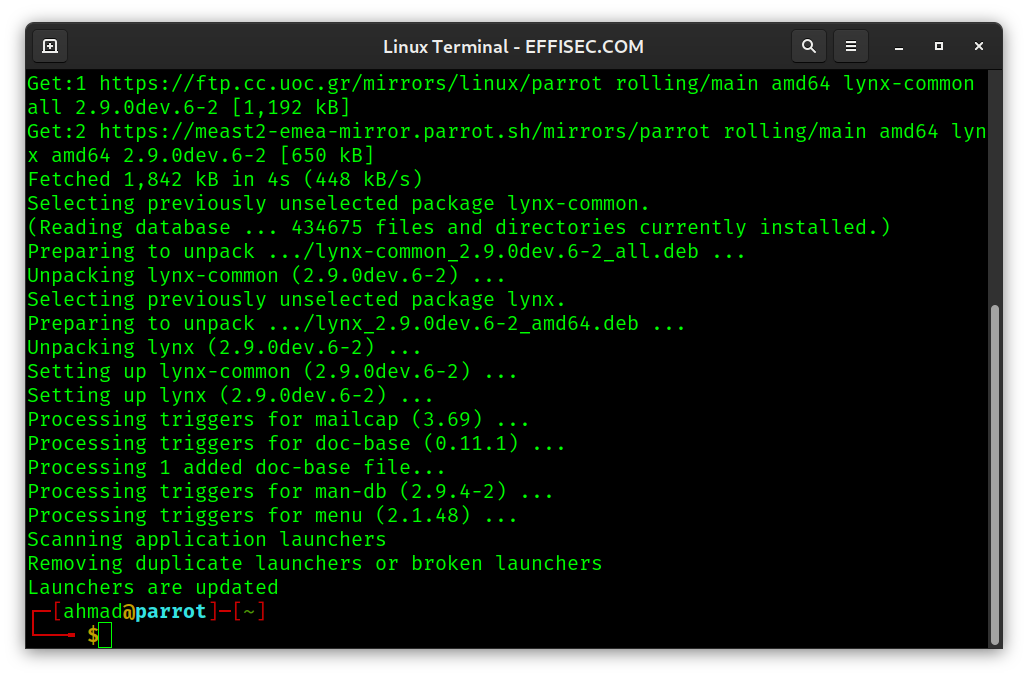
After confirming, the lynx package is fetched from the Internet and installed on your system.
apt-get update will update the package index files.
apt-get upgrade will install the newest versions of available updates.
Shell Keyboard Shortcuts
While your are interacting with the terminal, the following shortcuts can be quite handy:
Ctrl+CCancels an ongoing operationCtrl+Zput ongoing operation to sleep ZzzCtrl+Dexits terminal / end of file (EOF)Ctrl+RseaRch recent commands!!repeats the last commandCtrl+Uerases whole lineCtrl+Werases Word
Further Reading and Resources
I recommend reading Linux User’s Guide from The Linux Documentation Project Guides.
Another option you might want to check is The Linux Command Line.